
How can we help you?
Your website guide, from creating an account to downloading a subtitled or dubbed video.
Search in any supported language. Answers stay in your selected language.
From upload to ready to share
Import your video, choose the languages, review the captions, and export.
Translate. Subtitle. Dub.
Turn your video into a story more people can understand. Explore subtitles, natural voices, and simple editing tools.
- Translate your message
- Add clear subtitles
- Give it a new voice

 Exploring the world gives us a new perspective on life.
Hear your video in another language
Choose a language to hear a real one-minute dub, with matching subtitles.
The speaker’s voice match could not be verified for this result. Compare the original and dubbed audio.
This example was processed beforehand. Playback and the walkthrough do not run AI. Processing your own video takes time and may require paid credit.
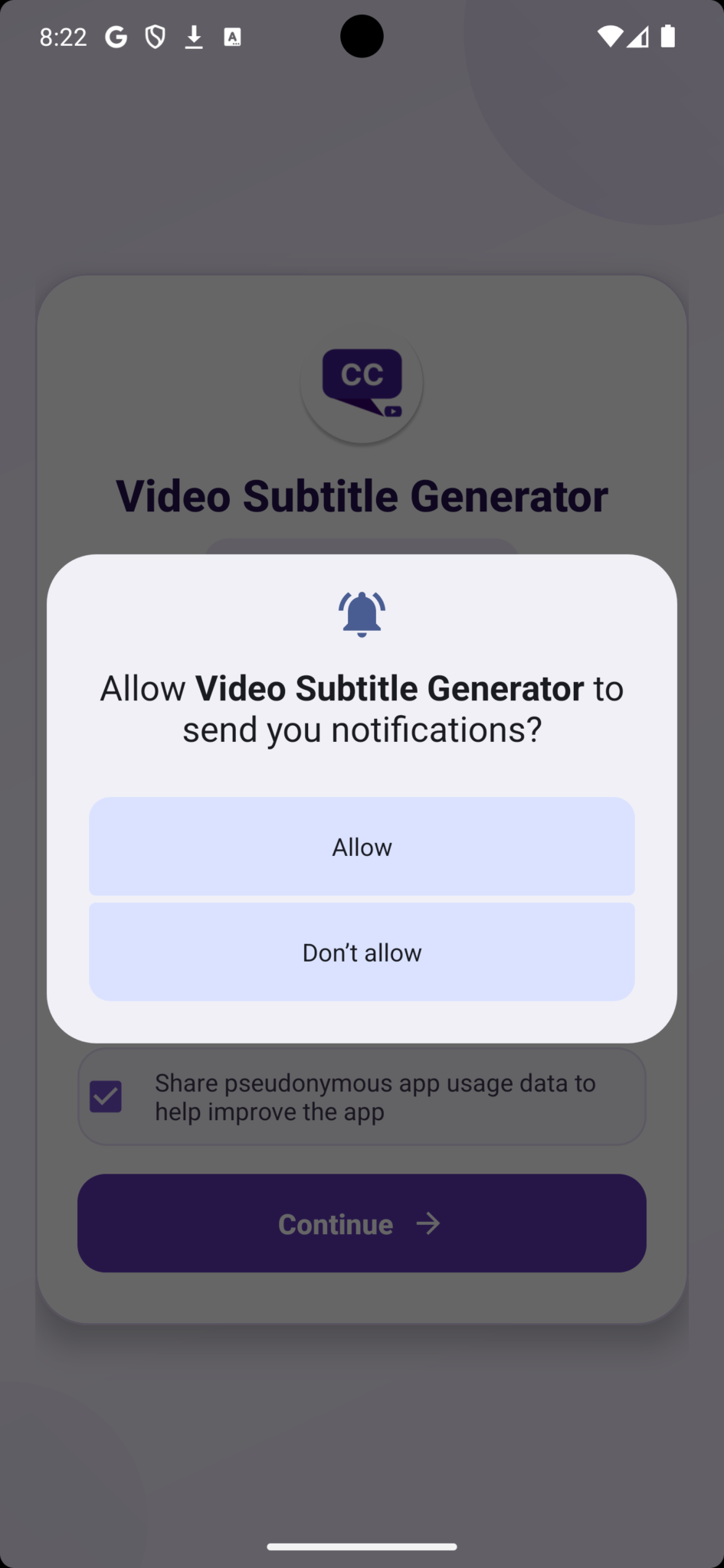
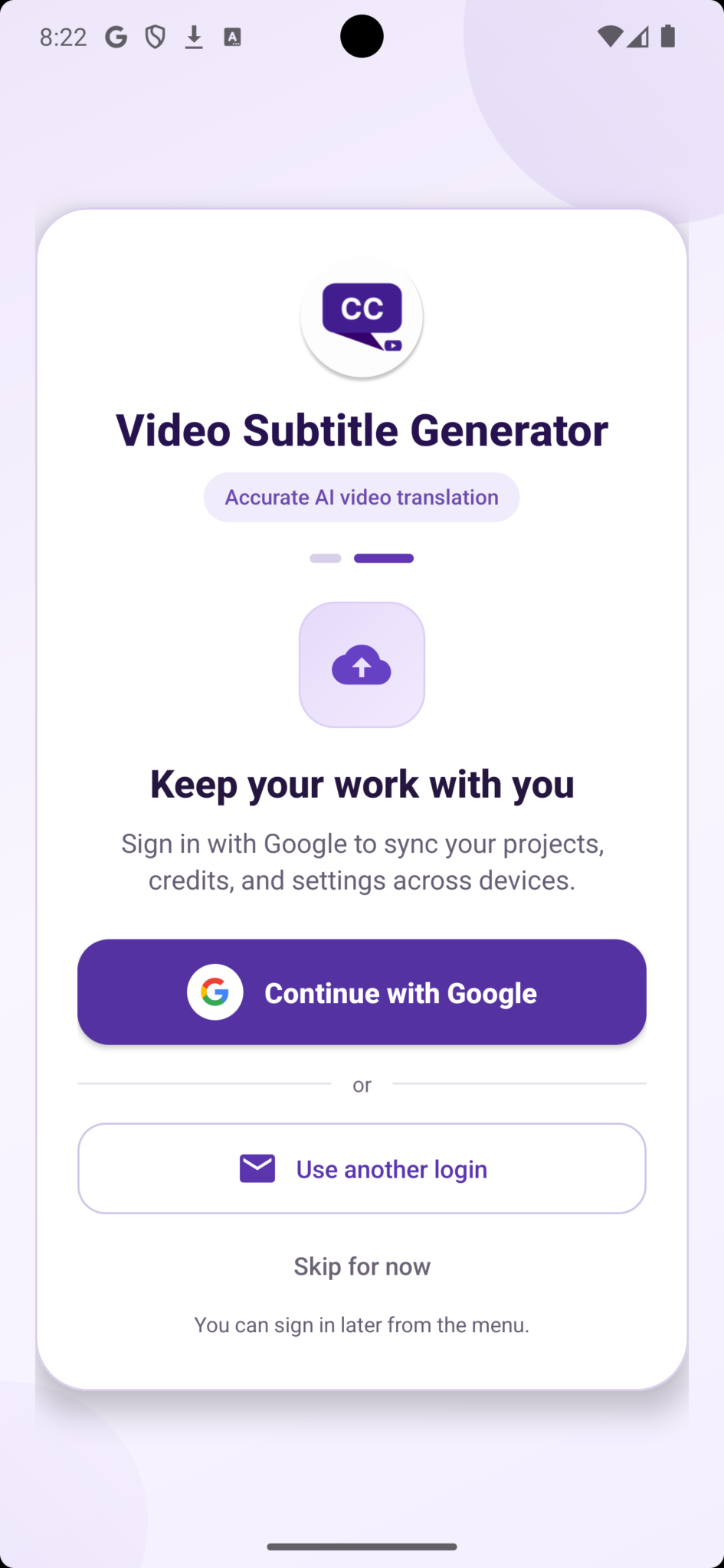
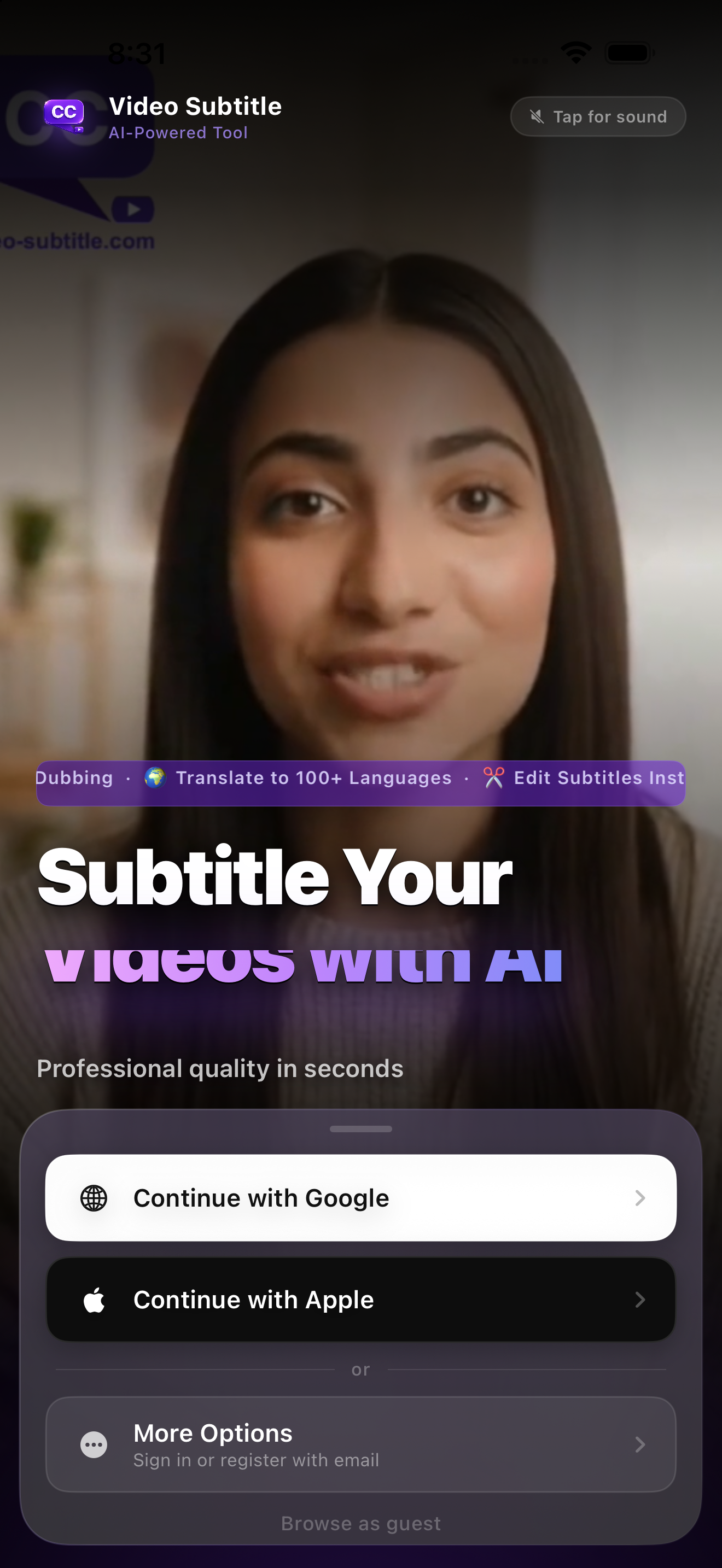
Mobile app: permissions, sign-in and editing
Follow real Android and iPhone screens to enable alerts, sign in with Google or Apple, edit captions and preview your dub.
Frequently asked questions
View all questionsWhy can’t I sign in after registering?
Submit the registration form and look for the account activation email. Open its activation link. Check spam or junk if the message is missing.
An unconfirmed account needs the activation link before you can sign in. For a forgotten password, choose Forgot your password? on the login page and follow the email instructions. If the website says the email already exists, sign in or recover that account.
Visual walkthrough
Select a step to see what to do. Enlarge the image for a closer look.
Sign in
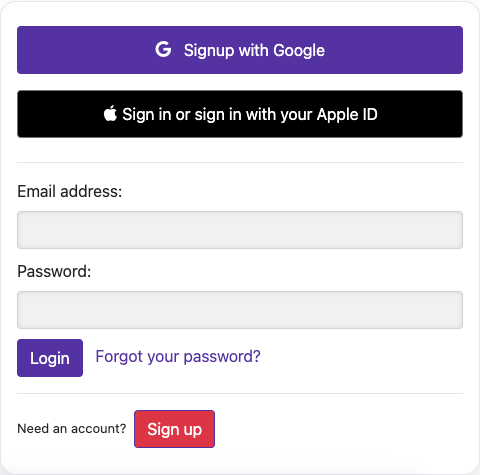
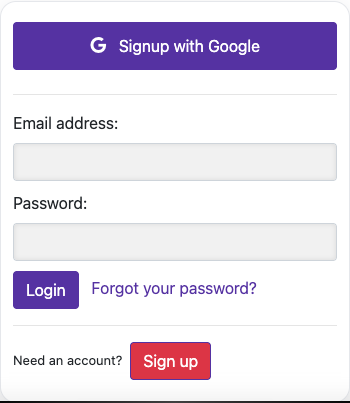
Captured from the live website. Private account details are hidden. Balances and files shown in tutorial images are examples, not your account or a current offer.
How are processing credits calculated?
Paid credit is processing time, displayed in minutes or hours. Processing a paid video deducts the processed video duration. First-time dubbing is bundled with the original video processing; creating another dub for a video that already has a completed dub costs its duration again. Your plan, subscription state, balance and expiry still determine access.
Visual walkthrough
Select a step to see what to do. Enlarge the image for a closer look.
Check your available balance
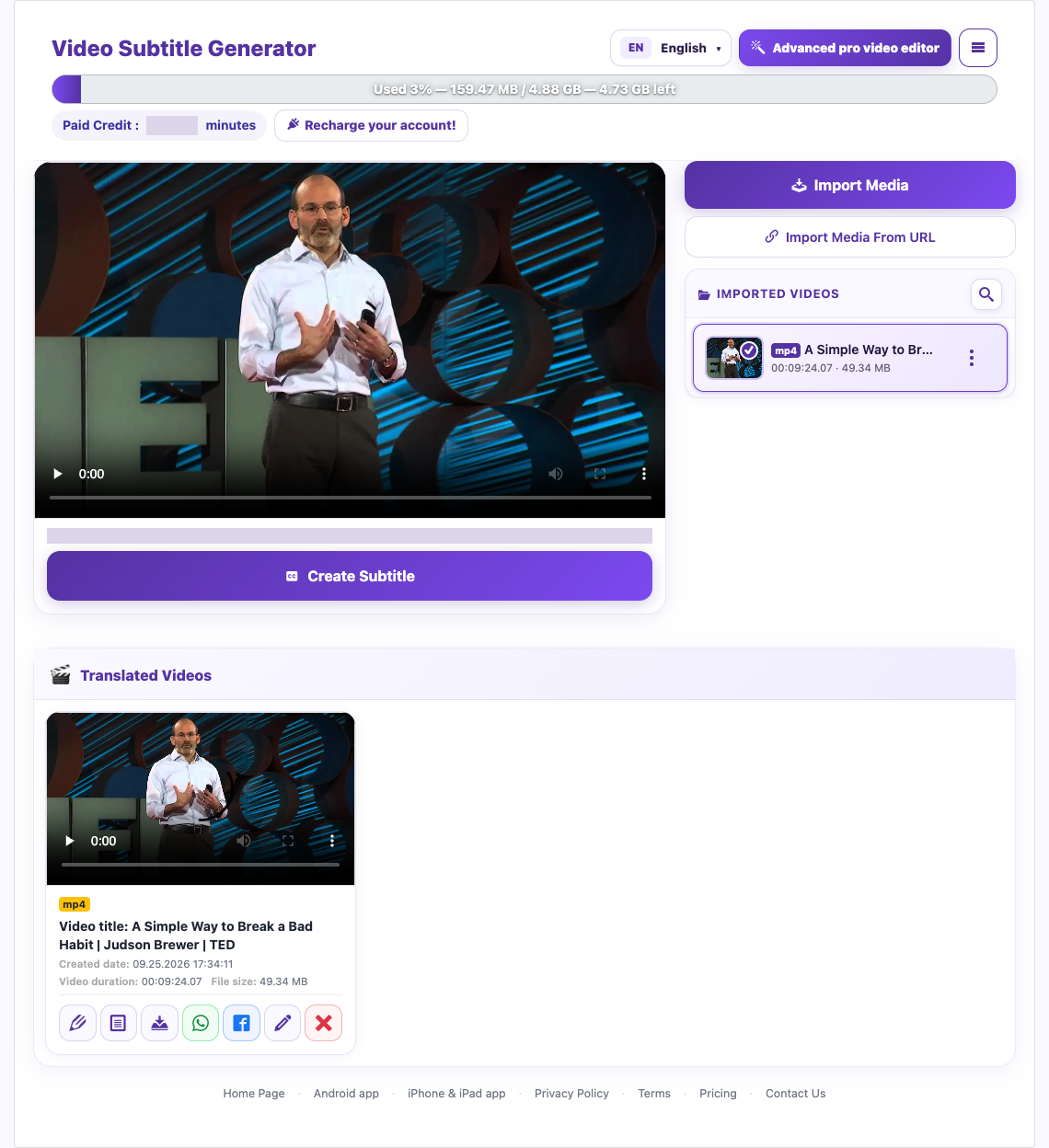
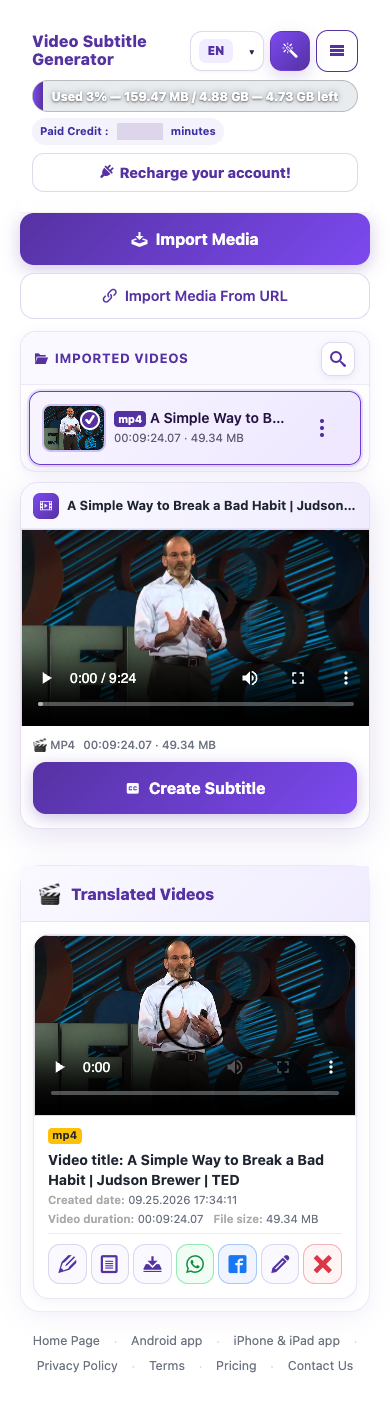
Captured from the live website. Private account details are hidden. Balances and files shown in tutorial images are examples, not your account or a current offer.
Does generating another dub use more credit?
For a 2-minute paid video, the original processing consumes 2 minutes of credit, with first-time dubbing bundled in. Regenerating a completed dub costs another 2 minutes after confirmation. If you start that regeneration with 10 minutes, 8 minutes remain. Separate AI creation or summary tools may have different costs; use their confirmation screens.
Visual walkthrough
Select a step to see what to do. Enlarge the image for a closer look.
An example of dubbing regeneration
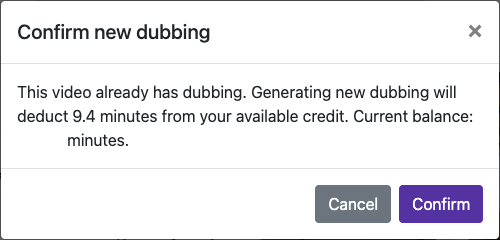
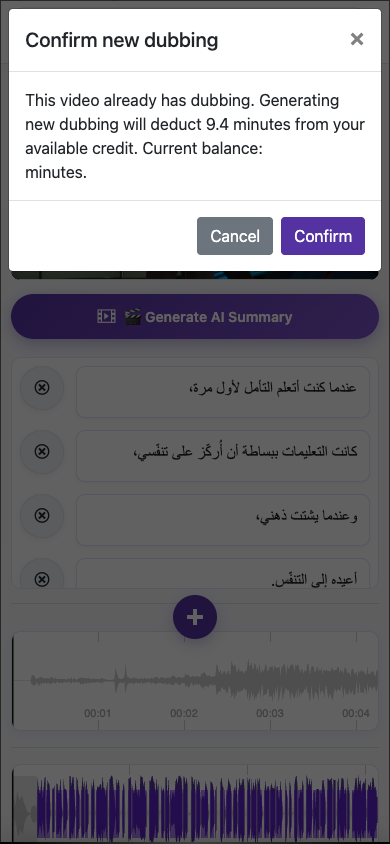
Check your available balance
Captured from the live website. Private account details are hidden. Balances and files shown in tutorial images are examples, not your account or a current offer.
Can I record my own voice for dubbing?
Open a processed video, choose Edit Caption, then Generate new dubbing. Select My voice (record now). The initial processing dialog offers the source clone and built-in male/female voices; custom recording is in the later dubbing dialog.
Record 3–10 seconds
Speak clearly at a natural pace in a quiet room. Use one voice, keep a steady distance from the microphone, and avoid music or other people speaking.
Confirm that you own the voice and consent to using it for dubbing. Review the captions and audio settings, then check the charge and submit.
Visual walkthrough
Select a step to see what to do. Enlarge the image for a closer look.
Record 3–10 seconds
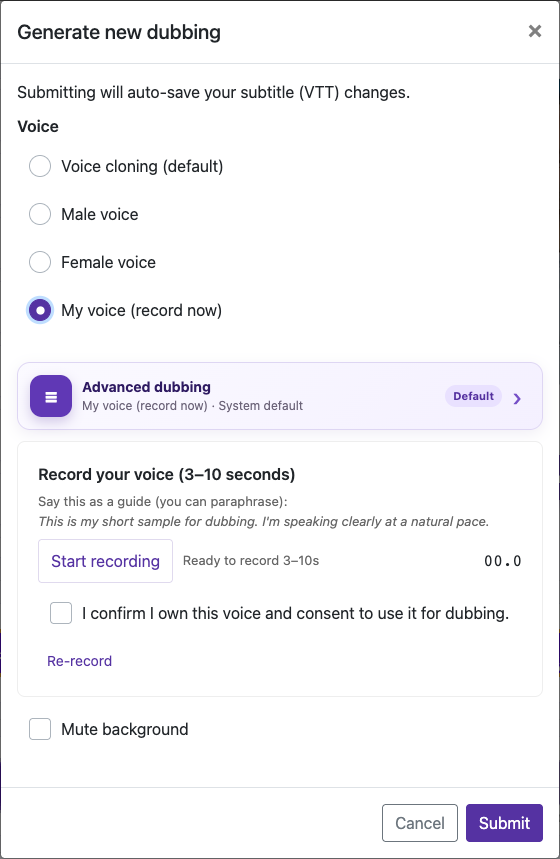
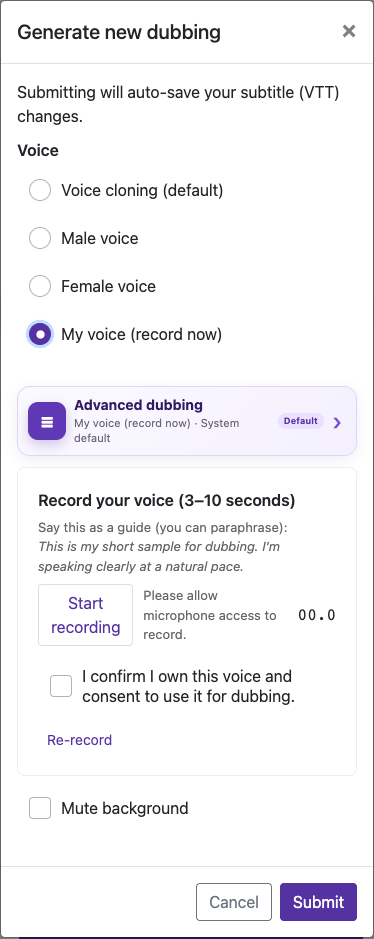
Captured from the live website. Private account details are hidden. Balances and files shown in tutorial images are examples, not your account or a current offer.
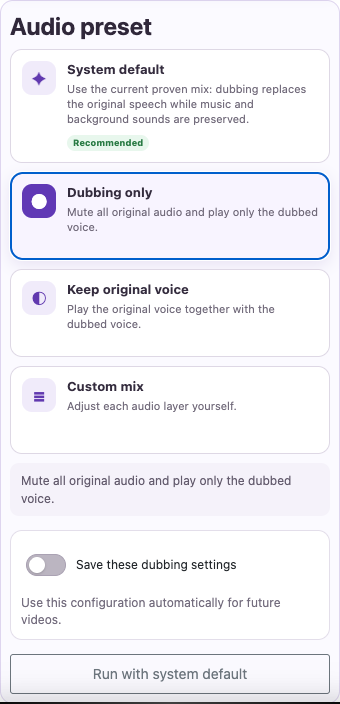
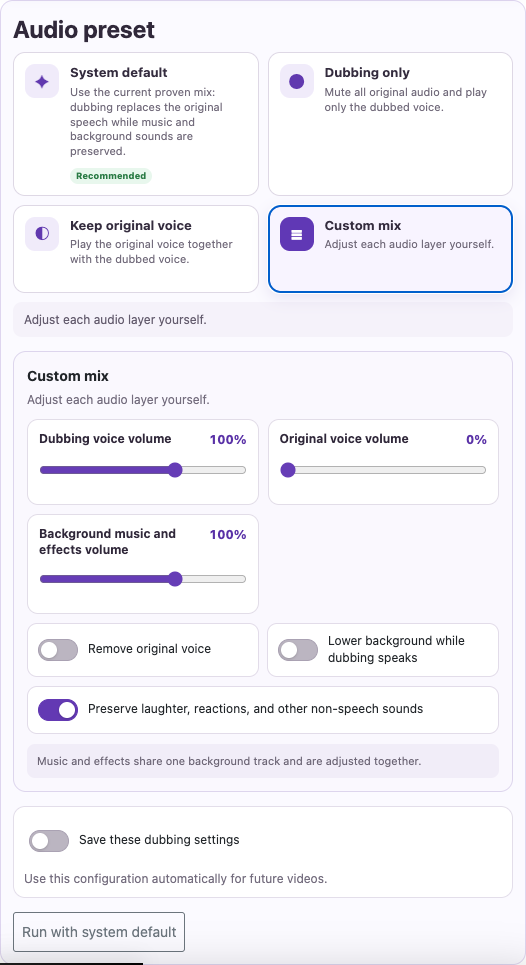
How do I mute original audio or lower background music?
Look for Advanced dubbing options in the dubbing settings. Depending on the screen, you may also see Mute background.
Use Dubbing only when you want only the translated voice. In a custom mix, use Remove original voice or lower original voice volume as appropriate.
Lower Background music and effects volume if the background competes with speech. Enable Lower background while dubbing speaks to reduce it during speech.
Visual walkthrough
Select a step to see what to do. Enlarge the image for a closer look.
Remove competing speech
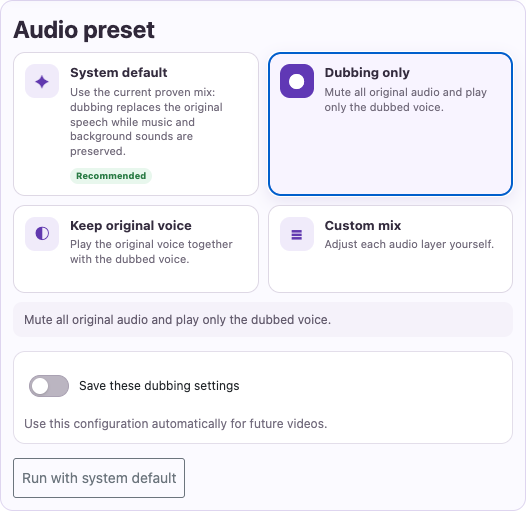
Adjust music and effects
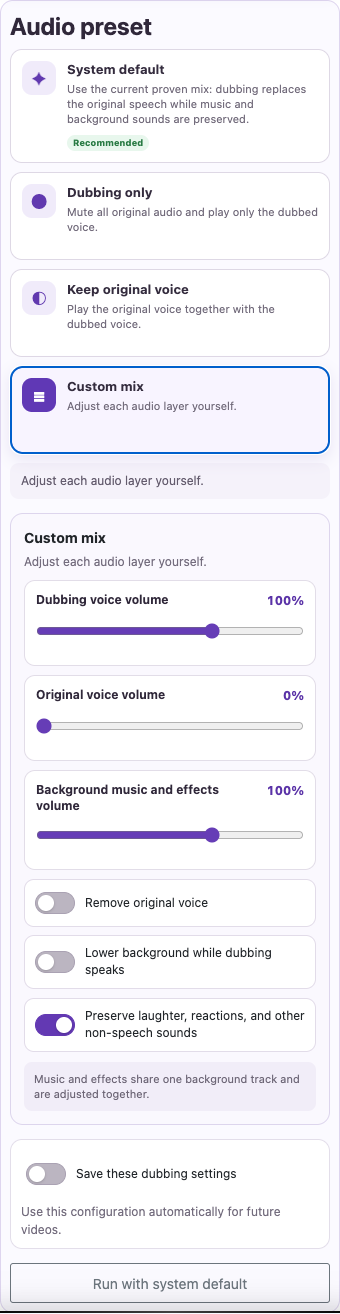
Captured from the live website. Private account details are hidden. Balances and files shown in tutorial images are examples, not your account or a current offer.
What are hard-burned subtitles?
Hard-burned subtitles become part of the video picture. Viewers cannot turn them off or change their font. To make changes later, edit the source captions and export a new video. Keep the original video and VTT file.
Visual walkthrough
Select a step to see what to do. Enlarge the image for a closer look.
Set the caption appearance
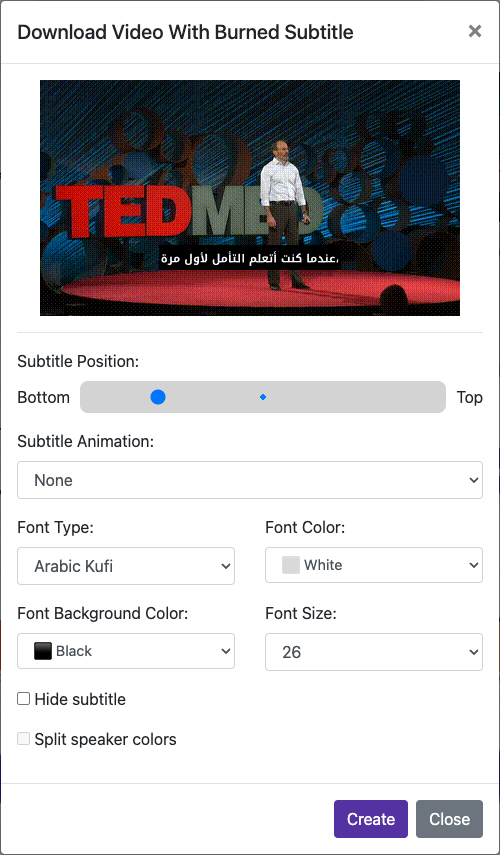
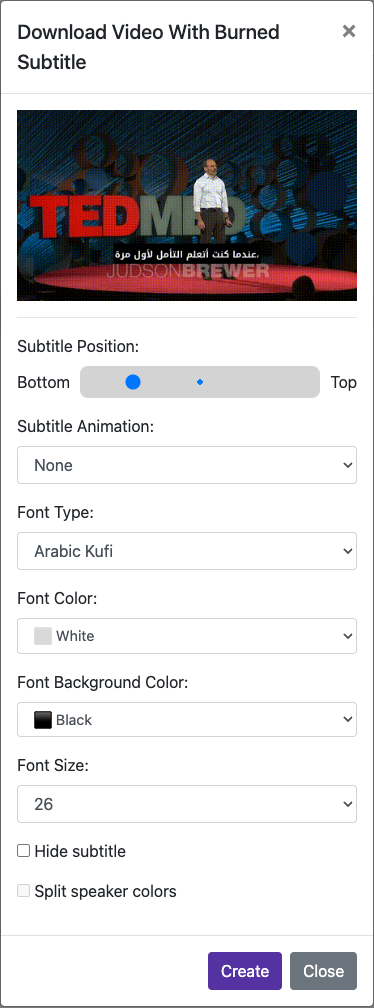
Captured from the live website. Private account details are hidden. Balances and files shown in tutorial images are examples, not your account or a current offer.
Explore the guides
15 guidesGetting started
Your account, credits, and first upload.
Create an account and sign in
Register, confirm your email, and find your workspace.
Visual walkthrough3 min readMobile app: permissions, sign-in and editing
Follow real Android and iPhone screens to enable alerts, sign in with Google or Apple, edit captions and preview your dub.
7 min readUnderstand credits and trial limits
Know what your balance means before starting a job.
Visual walkthrough5 min readManage your subscription and top-ups
Check renewal dates, add credit, and manage the correct payment provider.
3 min readSubtitles & translation
Accurate words, in the right language.
Transcribe your first video
Turn spoken words into editable, timed captions.
Visual walkthrough4 min readTranslate a video into another language
Choose the right source and target languages, then review the translation.
Visual walkthrough3 min readEdit and correct subtitles
Fix text, review timing, and save before generating the final video.
Visual walkthrough4 min readDubbing & voices
Natural voices and a cleaner audio mix.
Get natural-sounding dubbing
Choose a suitable voice and prepare the captions for speech.
Visual walkthrough5 min readClone your voice or the source voice
Record a clean 3–10 second sample for a better voice reference.
Visual walkthrough4 min readMute background and balance the audio
Control the dubbed voice, original speech, and background track.
Visual walkthrough4 min readStyle & download
Make it yours. Get it ready to share.
More tools & troubleshooting
Keep creating, on any device.
Explore summaries and video editing tools
Create summaries, trim clips, and find additional creative tools.
Visual walkthrough4 min readUse mobile devices and keep your files
Upload, record, download, and keep a backup of completed work.
Visual walkthrough3 min readFix common transcription and dubbing problems
Find the next step when uploading, speech, or downloads go wrong.
5 min readNeed a hand?
Tell us what happened and which step you reached.