
Download a video or subtitle file
Choose a separate VTT file or permanently burned-in captions.
On this page
Choose the right outputDownload with burned-in captionsDownload captions separatelyWhat “burned in” meansVisual walkthrough
Select a step to see what to do. Enlarge the image for a closer look.
Choose Download with subtitle
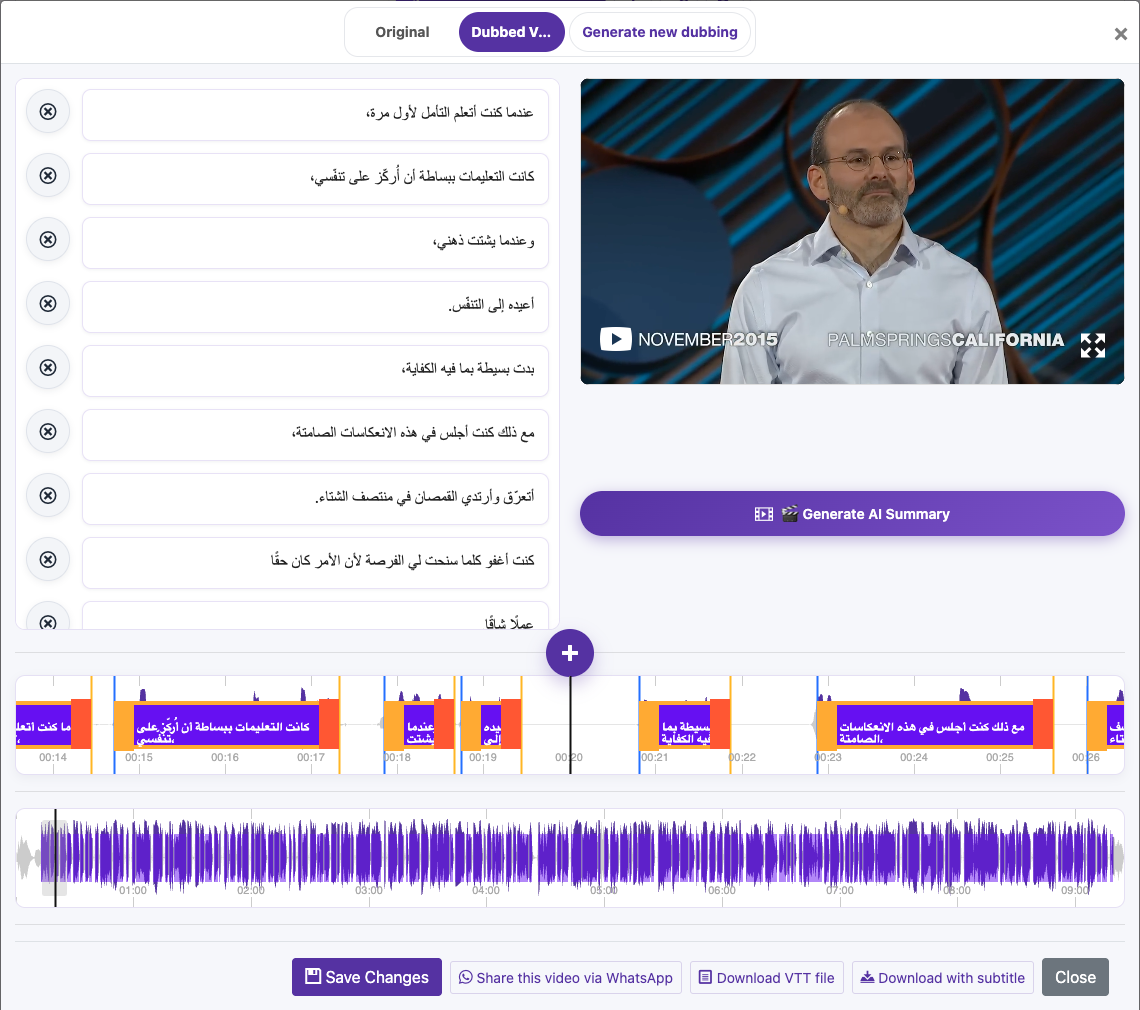
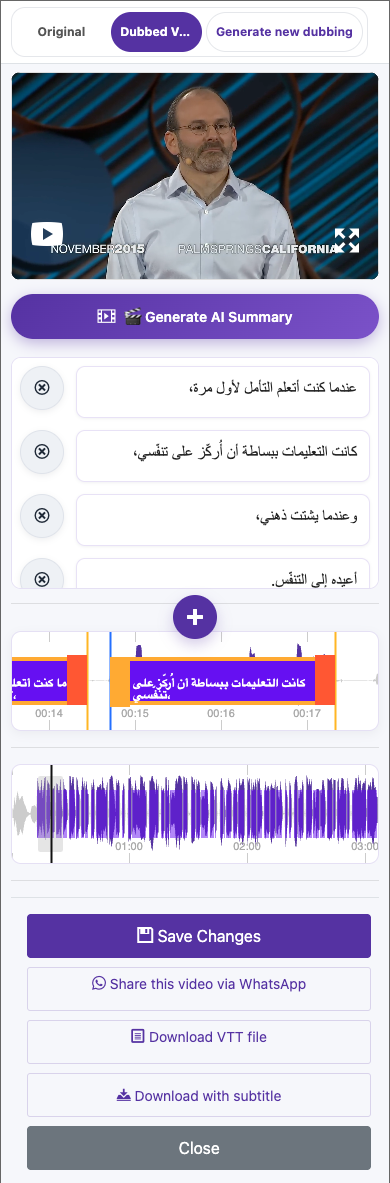
Open the export dialog, also labeled Download Video With Burned Subtitle on some screens.
Set the caption appearance
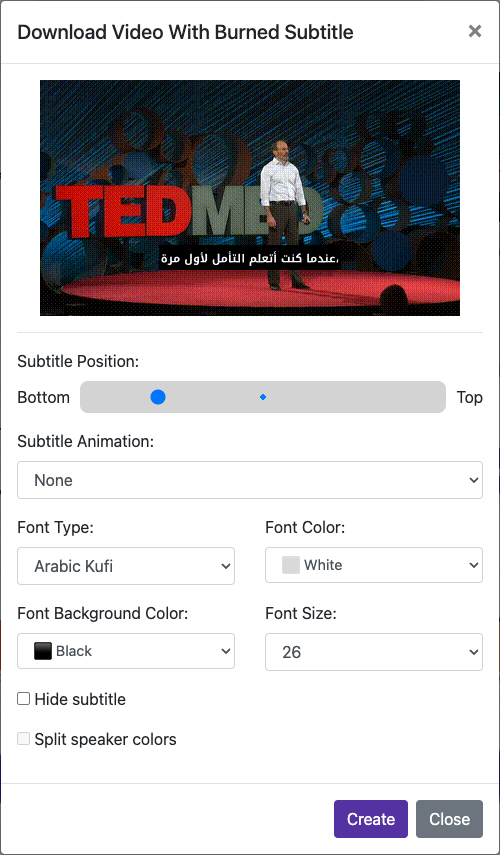
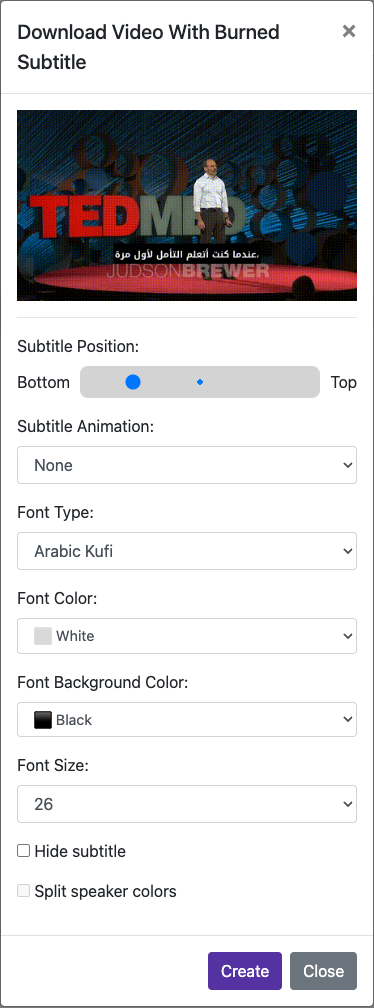
Choose Font Type, Font Size, Font Color, and Font Background Color. Adjust Subtitle Position and any animation. Review the preview.
Create the downloadable video
Submit the render/export action and wait for completion. Processing time depends on the file and settings.
Captured from the live website. Private account details are hidden. Balances and files shown in tutorial images are examples, not your account or a current offer.
Open the websiteChoose the right output
| Output | Best for |
|---|---|
| Download VTT file | Editable captions or a player that accepts a separate subtitle track. |
| Video with burned subtitles | Visible captions on social platforms and players without subtitle support. |
Download with burned-in captions
Open the final language version
Save caption edits first. If the video has dubbing, check Original and Dubbed Version and choose the audio you want.
Choose Download with subtitle
Open the export dialog, also labeled Download Video With Burned Subtitle on some screens.
Set the caption appearance
Choose Font Type, Font Size, Font Color, and Font Background Color. Adjust Subtitle Position and any animation. Review the preview.
Create the downloadable video
Submit the render/export action and wait for completion. Processing time depends on the file and settings.
Save and verify
Use the download link when the file is ready. Play the saved file and check its captions, audio, and full duration.
Download captions separately
Choose Download VTT file on the processed video. A VTT file contains text and timestamps; it does not contain the video or dubbed audio. Keep it with the matching video and language version.
What “burned in” means
Hard-burned subtitles become part of the video picture. Viewers cannot turn them off or change their font. To make changes later, edit the source captions and export a new video. Keep the original video and VTT file.
Questions about this guide
What are hard-burned subtitles?
Hard-burned subtitles become part of the video picture. Viewers cannot turn them off or change their font. To make changes later, edit the source captions and export a new video. Keep the original video and VTT file.
Visual walkthrough
Select a step to see what to do. Enlarge the image for a closer look.
Set the caption appearance
Captured from the live website. Private account details are hidden. Balances and files shown in tutorial images are examples, not your account or a current offer.
Can I download subtitles as a separate file?
Choose Download VTT file on the processed video. A VTT file contains text and timestamps; it does not contain the video or dubbed audio. Keep it with the matching video and language version.
Visual walkthrough
Select a step to see what to do. Enlarge the image for a closer look.
Download captions separately
Captured from the live website. Private account details are hidden. Balances and files shown in tutorial images are examples, not your account or a current offer.
Need a hand?
Tell us what happened and which step you reached.