
Mobile app: permissions, sign-in and editing
Follow real Android and iPhone screens to enable alerts, sign in with Google or Apple, edit captions and preview your dub.
On this page
Choose notifications and optional usage sharingAllow processing notificationsContinue with Google on AndroidChoose Google, Apple or email on iPhoneComplete Apple’s secure sign-in sheetEdit subtitle text on your phoneUse the waveform to adjust timingPreview subtitles and dubbed audio full screenRotate the full-screen playerReview notifications, credit and subscriptionCheck subtitle layers before sharingApp screenshots supplied for this guide. Private sign-in details are hidden. Screen language and layout may differ from your device.
Choose notifications and optional usage sharing
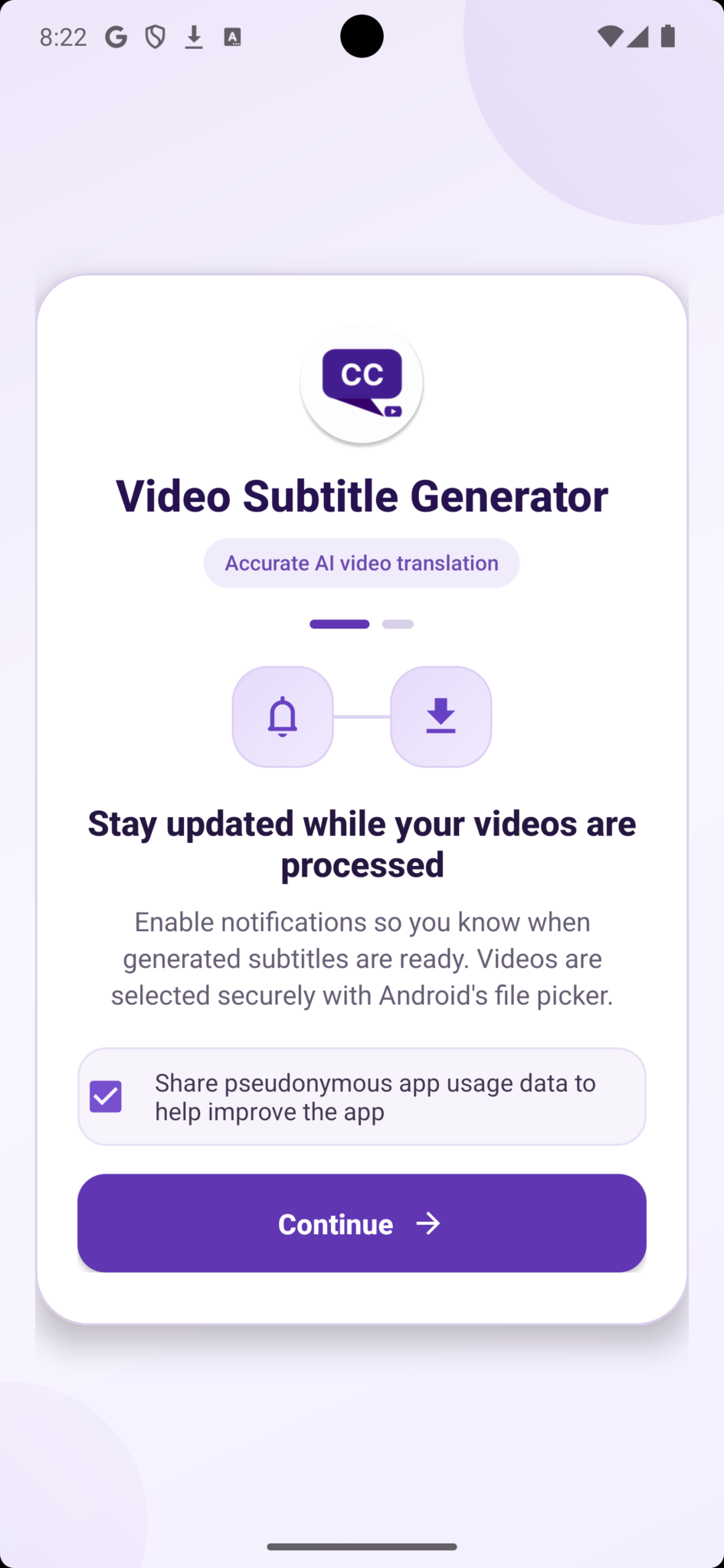
On the Android welcome screen, review the notification explanation, then tap Continue. Alerts help you follow video processing. The usage-data checkbox is a separate, optional choice: leave it selected to share pseudonymous app usage, or clear it before continuing.
 Enlarge image
Allow processing notifications
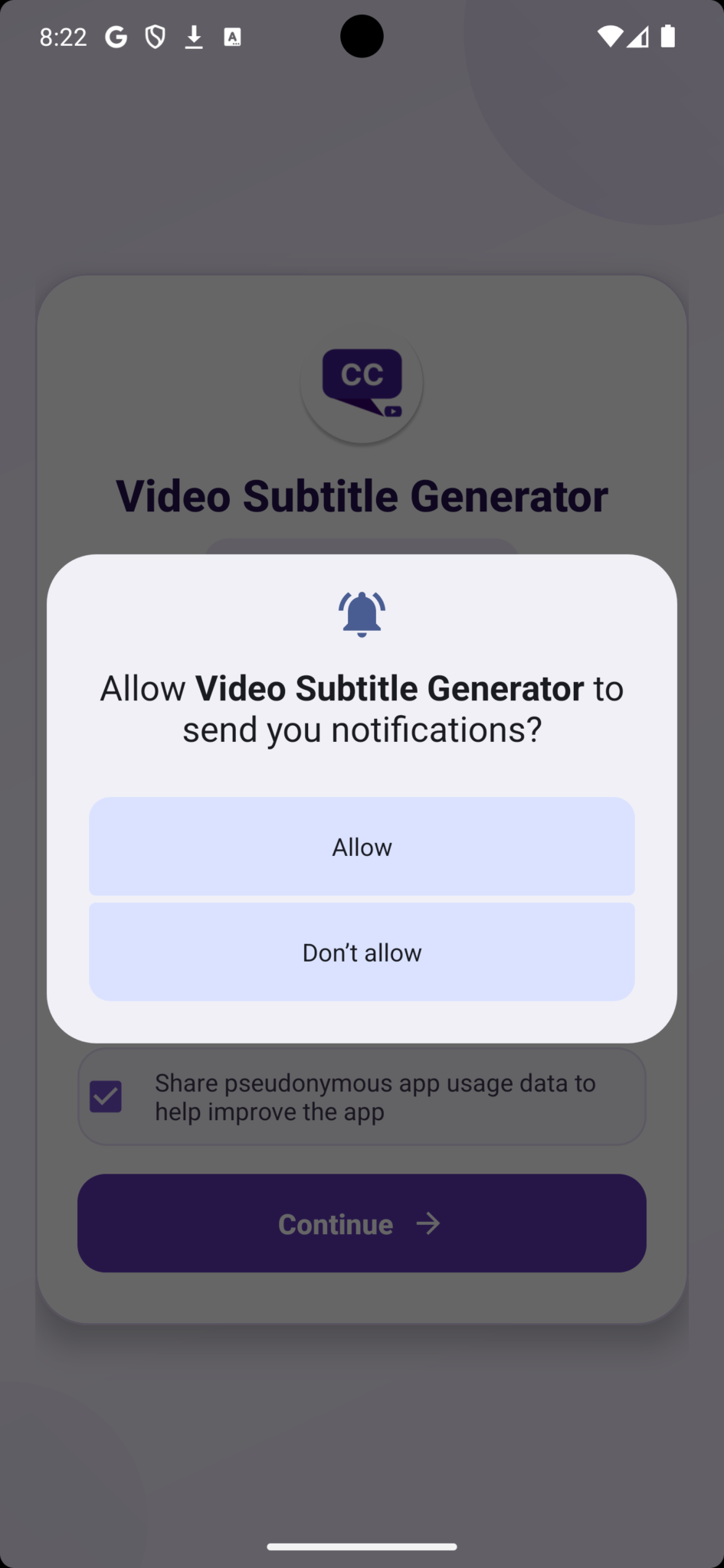
When Android shows the system notification dialog, tap Allow to enable app alerts. If you choose Don’t allow, you can continue using the app and check progress inside it. To change this later, open your phone’s Settings, select the app, then Notifications.
 Enlarge image
Continue with Google on Android
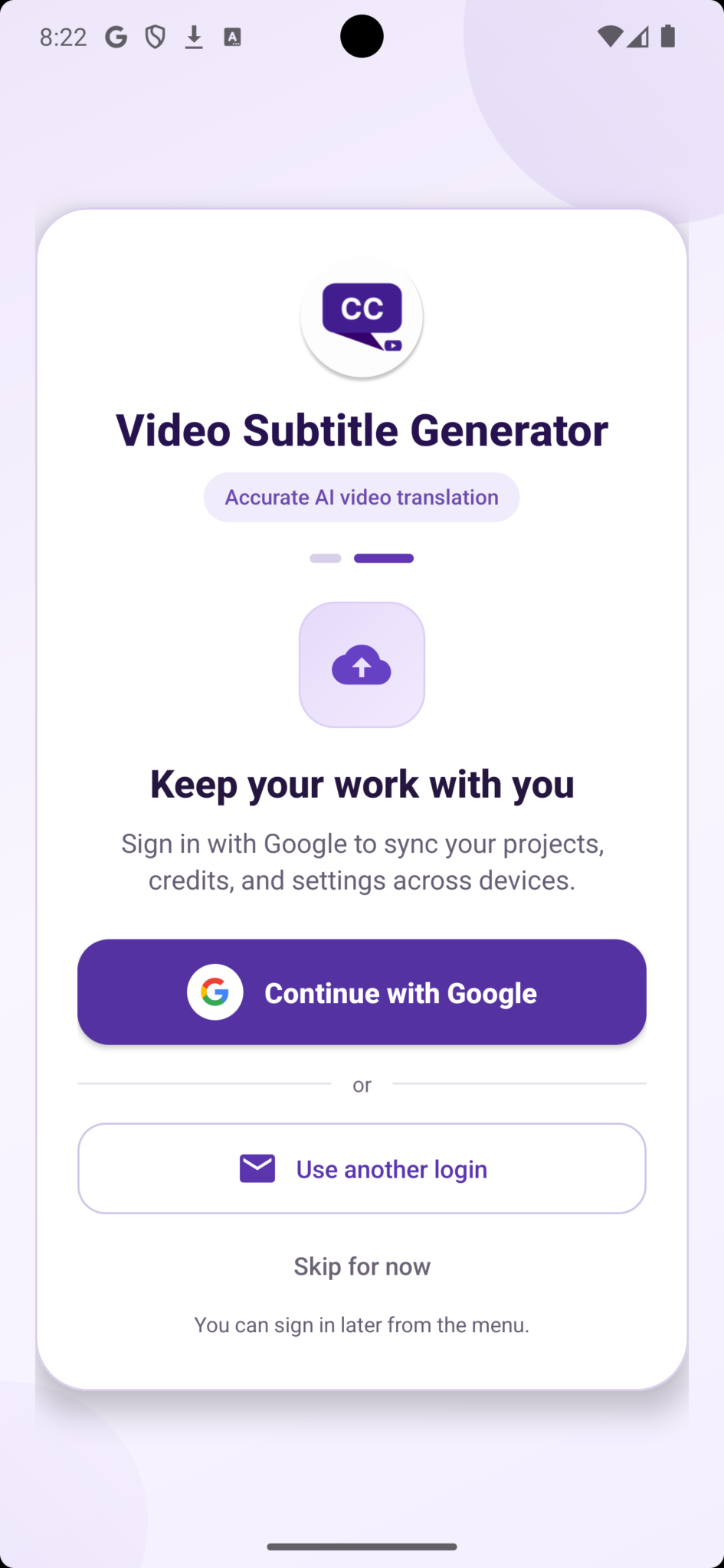
Tap Continue with Google and select your account in Google’s native sign-in flow. Complete any Google verification, then return to the app. The first successful sign-in can create your Video Subtitle account; returning users should choose the same Google account to recover their workspace and balance.
 Enlarge image
Choose Google, Apple or email on iPhone
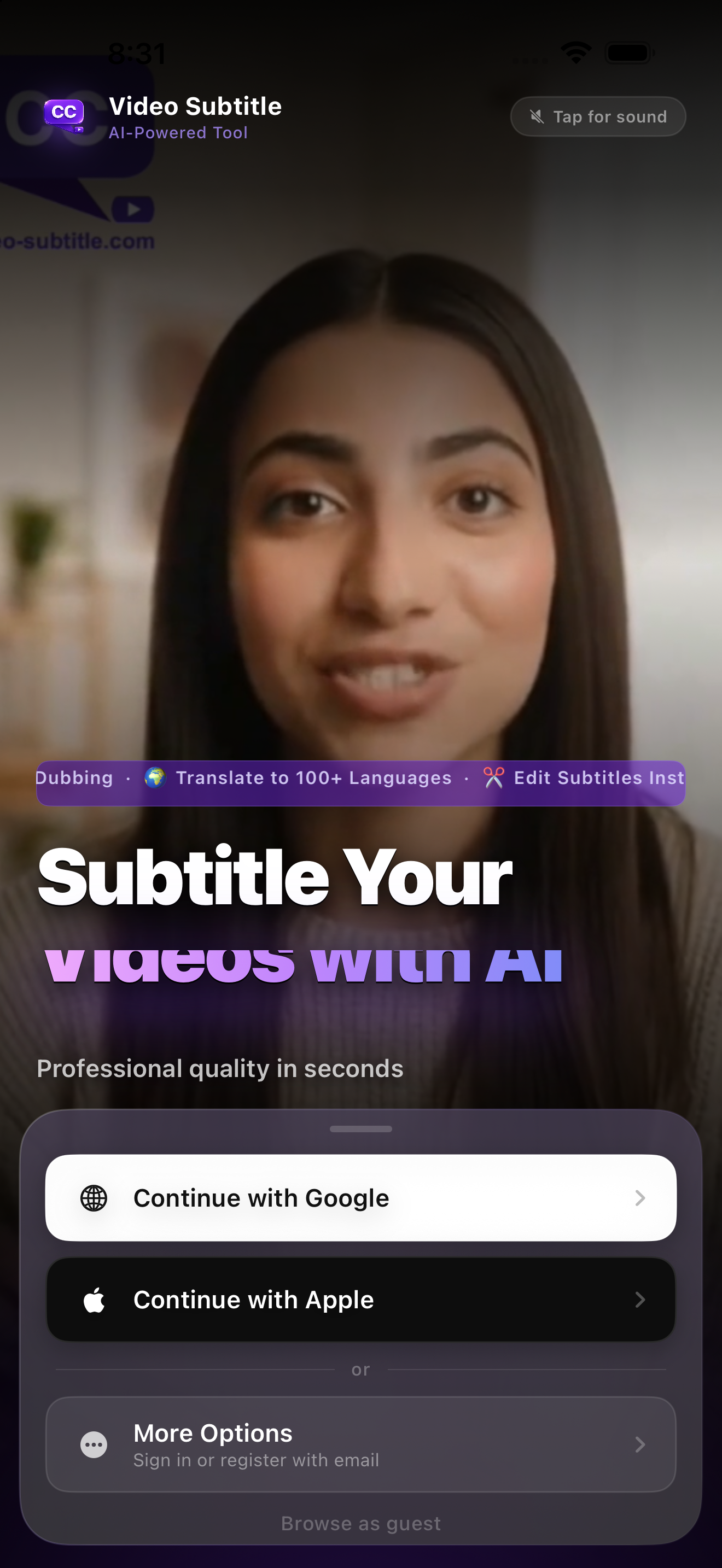
On the iPhone welcome screen, select Continue with Google or Continue with Apple and complete the provider’s sign-in steps. More Options opens email sign-in or registration. Browse as guest lets you explore before signing in.
 Enlarge image
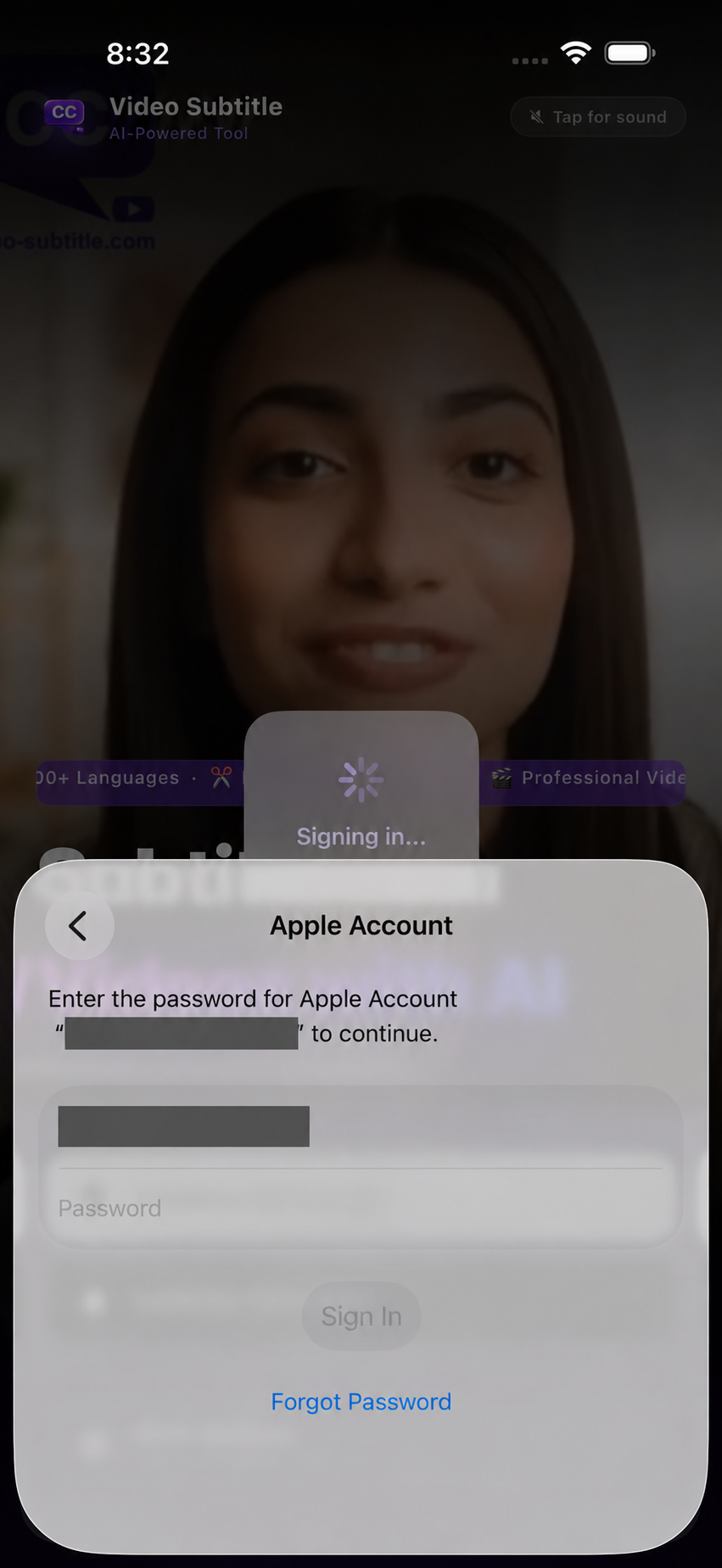
Complete Apple’s secure sign-in sheet
After Continue with Apple, follow the Apple Account sheet on your own device. Apple may ask you to authenticate. Enter Apple credentials only in Apple’s authentication flow, then wait for the app to finish signing in. Never send your password to support.
 Enlarge image
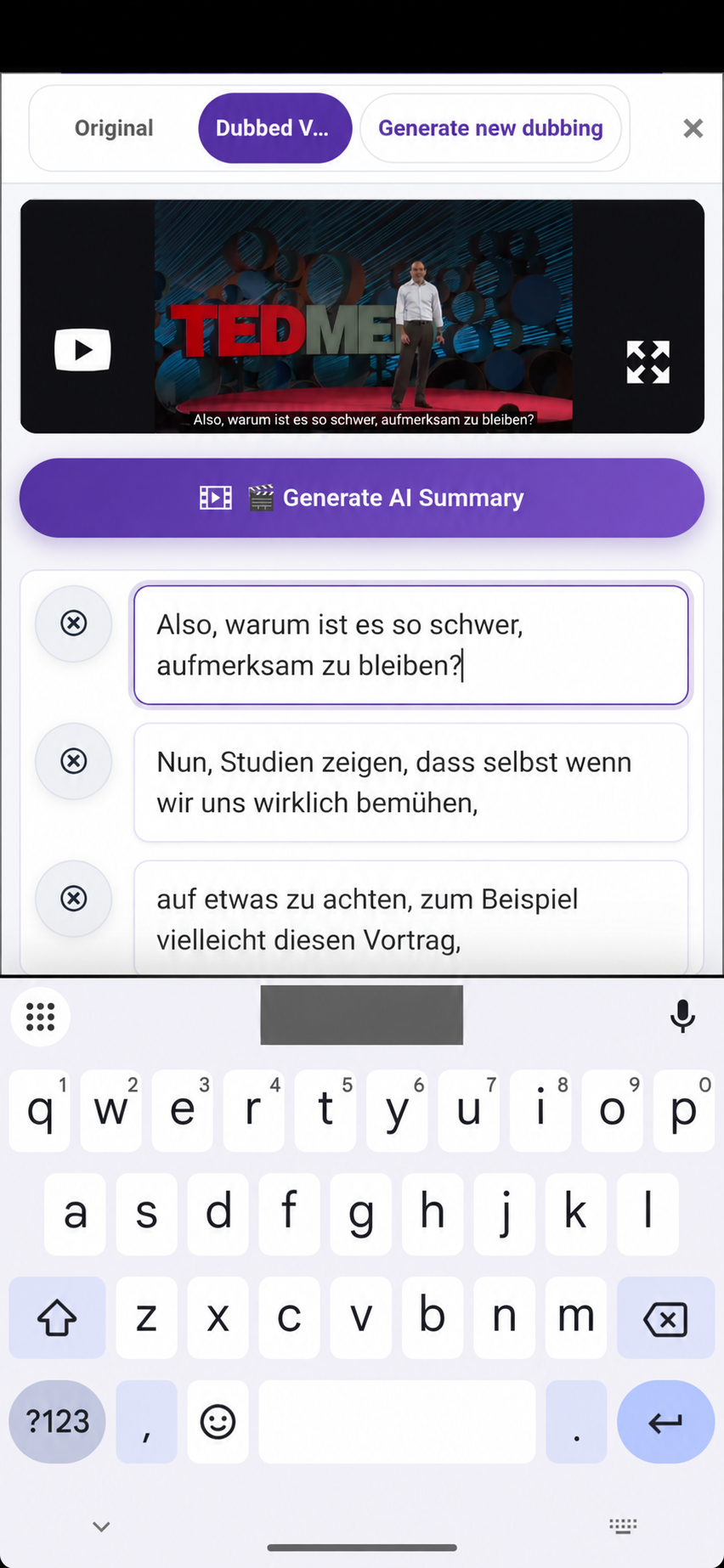
Edit subtitle text on your phone
Tap a subtitle text box to open the keyboard. Correct spelling, names or translation, then preview the matching video moment. Move between the Original and Dubbed Video views to compare the result. Save Changes when you finish editing.
 Enlarge image
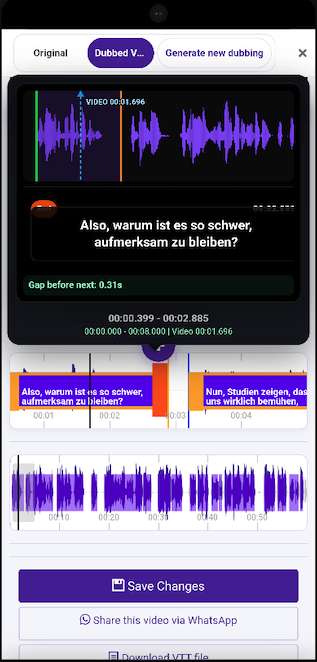
Use the waveform to adjust timing
Select a caption on the timeline and compare it with the speech waveform. Adjust its start and end using the editor’s timing controls, then play across the boundary to check the next caption and any gap. The lower waveform helps you navigate through the video. Tap Save Changes after your adjustments.
 Enlarge image
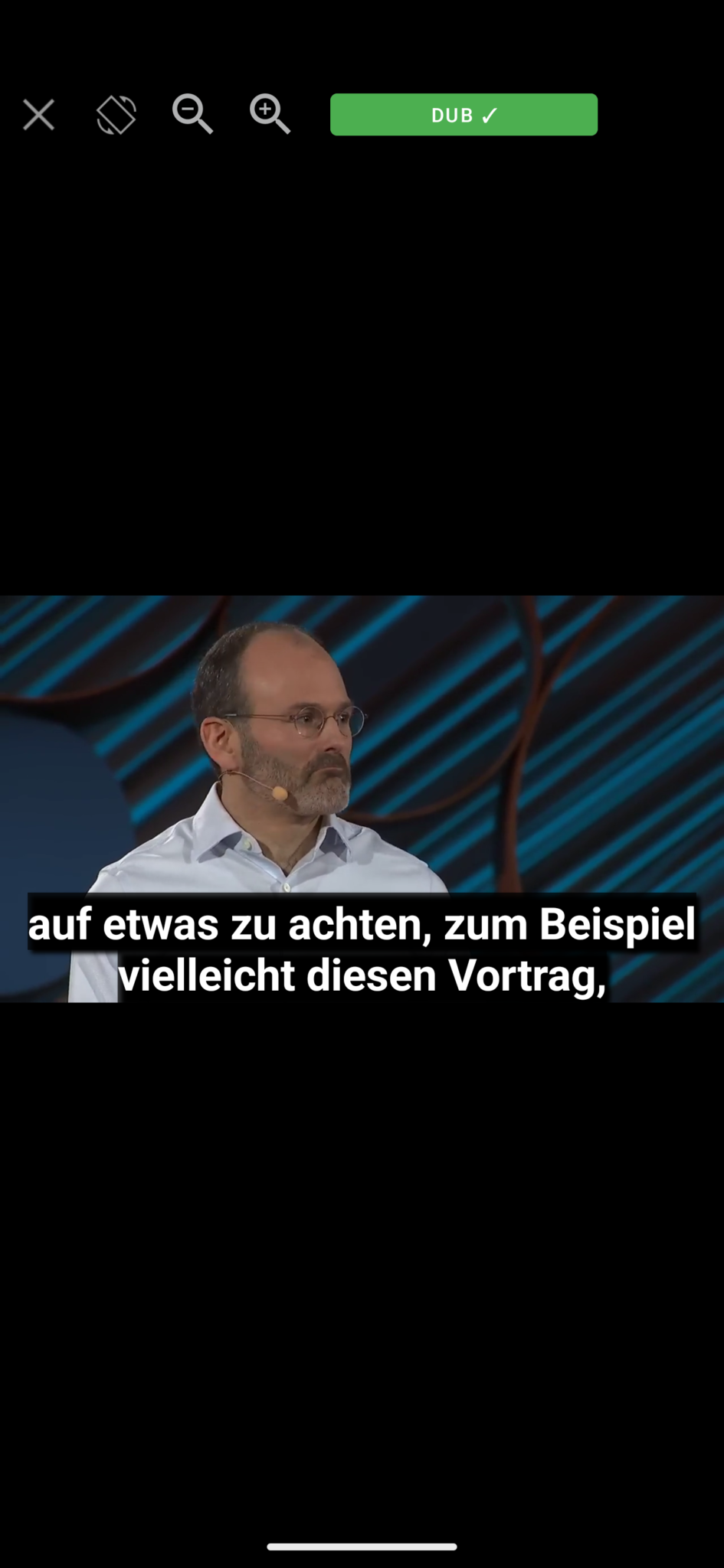
Preview subtitles and dubbed audio full screen
Open full-screen playback to check how captions look over the video. The DUB indicator shows the dubbed playback mode in this example. Use the available audio switch to compare the original and dubbed voice, and the zoom controls to inspect the picture. Close returns to the editor.
 Enlarge image
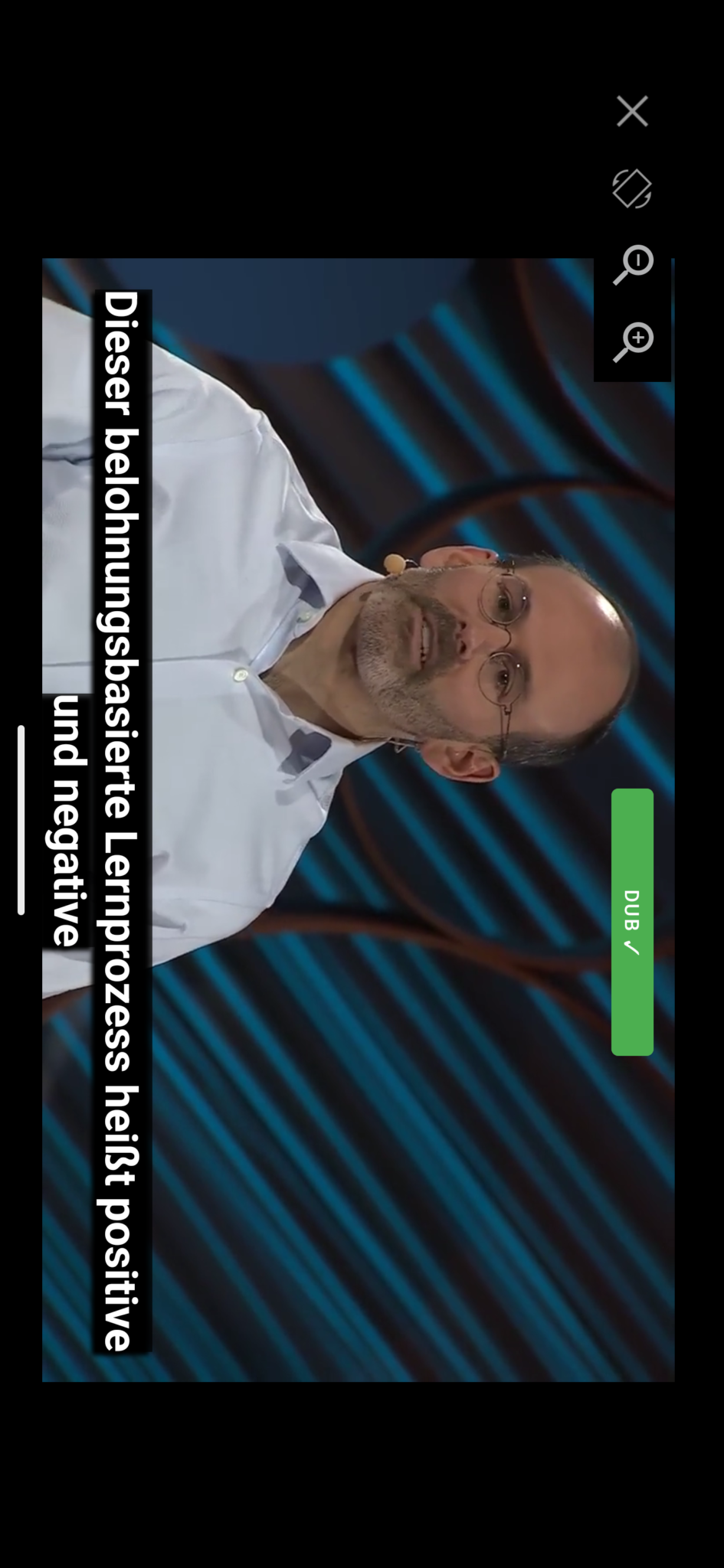
Rotate the full-screen player
Use the player’s rotate control to view the video in landscape. Check that long subtitle lines remain readable and that the dubbed audio fits the scene. Use zoom out if the picture is too cropped, and close full screen to continue editing.
 Enlarge image
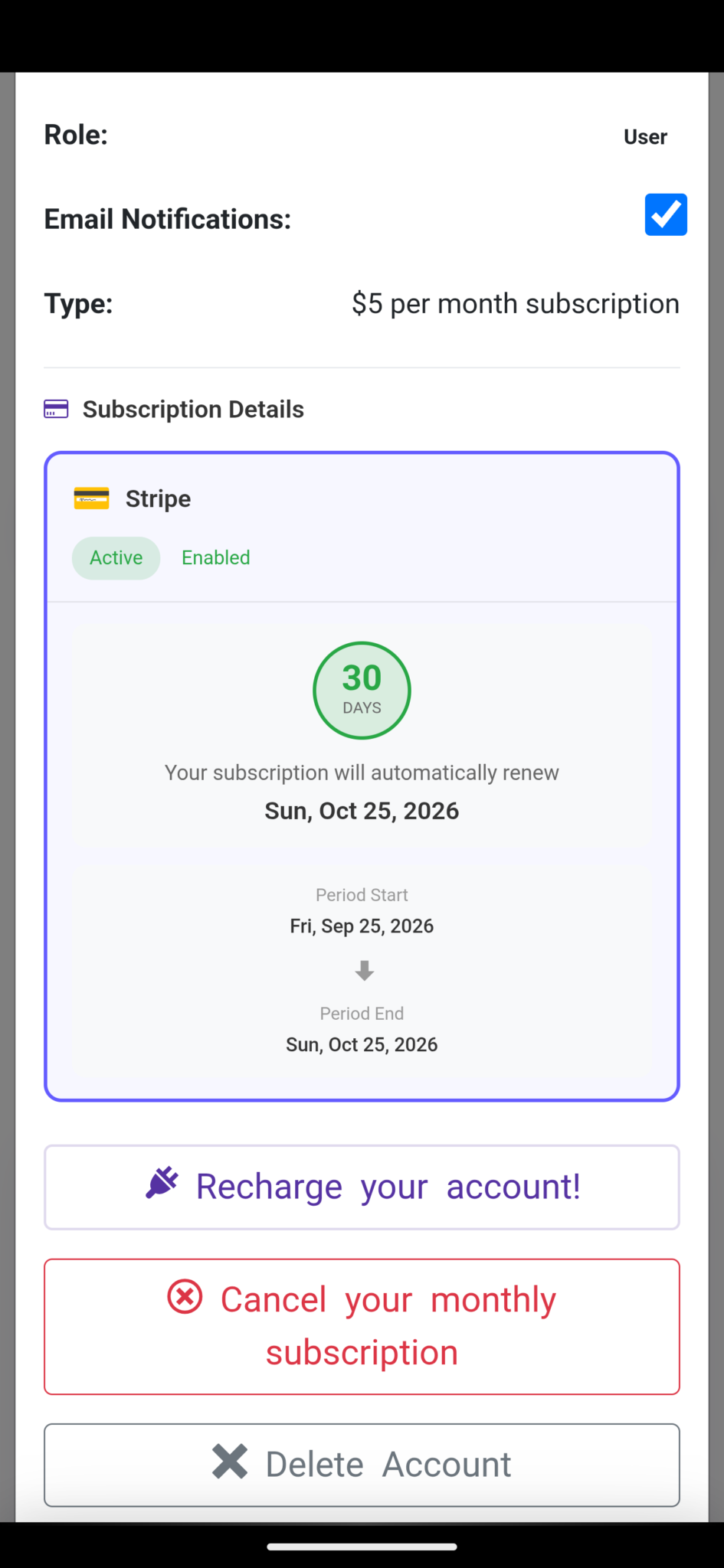
Review notifications, credit and subscription
Open your account to review Email Notifications, your plan and subscription status. Recharge your account opens purchase options. The example shows a Stripe subscription; your billing provider, price, dates and remaining credit can differ. Check your own account before making a purchase.
 Enlarge image
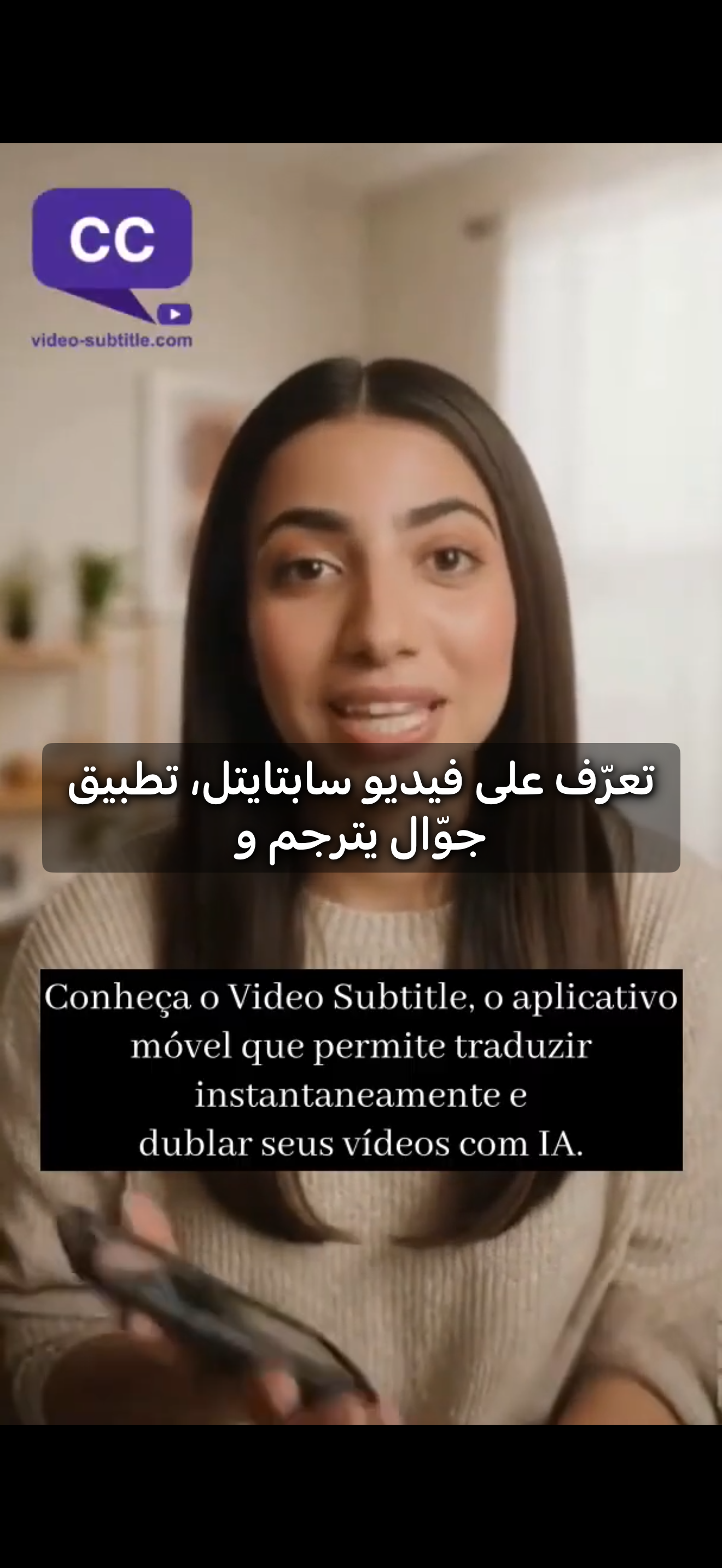
Check subtitle layers before sharing
This mobile video example shows Arabic captions above Portuguese captions already visible in the picture. Review your selected subtitle language and preview the result before sharing. Text already burned into the source picture remains visible when another subtitle layer is added.
 Enlarge image
Need a hand?
Tell us what happened and which step you reached.