
Explore summaries and video editing tools
Create summaries, trim clips, and find additional creative tools.
On this page
Generate an AI summaryUse the advanced video editorMake a short demonstration clipConvert or create mediaVisual walkthrough
Select a step to see what to do. Enlarge the image for a closer look.
Choose the summary options
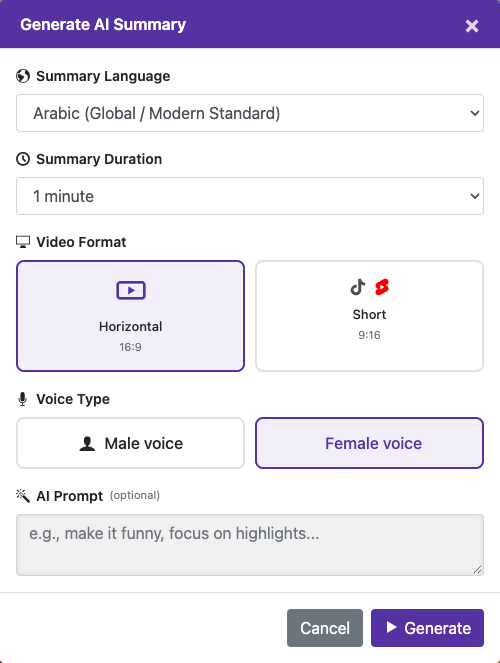
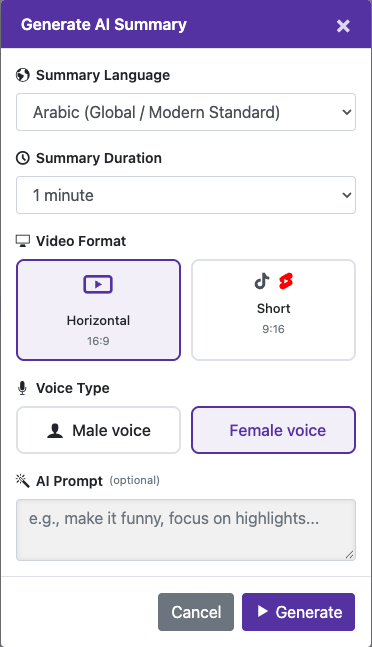
Select the summary language and duration (the current options range from 30 seconds to 5 minutes), horizontal 16:9 or vertical 9:16, and male or female voice. Add an optional instruction, such as focusing on the main points.
Captured from the live website. Private account details are hidden. Balances and files shown in tutorial images are examples, not your account or a current offer.
Open the websiteGenerate an AI summary
Start from a processed video
Open the captioned video and find Generate AI Summary.
Choose the summary options
Select the summary language and duration (the current options range from 30 seconds to 5 minutes), horizontal 16:9 or vertical 9:16, and male or female voice. Add an optional instruction, such as focusing on the main points.
Review limits and start
Check any trial allowance or credit confirmation. Wait for the summary job to finish before submitting it again.
Review the result
Check that the summary accurately represents the video. Important details can be omitted by summarization; use the full source when completeness matters.
Use the advanced video editor
Open Advanced pro video editor if it is available in your workspace. Add media to the project, arrange clips, and use the offered cut, text, image, audio, aspect-ratio, and preview controls. Preview the timeline before choosing Create Video or the export action.
Make a short demonstration clip
Keep your original intact. In the editor, select a section with clear speech, set the clip boundaries, preview it, and export a separate short video. Then import that clip for transcription or dubbing. A roughly one-minute clip is easier to compare across languages and settings.
Convert or create media
The Convert Video tool offers output format, size, and quality options. AI video creation, where available, has its own model, duration, quality, and credit confirmation. Check that confirmation carefully: an AI video’s price is not necessarily the same as its playback duration.
Questions about this guide
How do I create an AI video summary?
Open the captioned video and find Generate AI Summary.
Select the summary language and duration (the current options range from 30 seconds to 5 minutes), horizontal 16:9 or vertical 9:16, and male or female voice. Add an optional instruction, such as focusing on the main points.
Check any trial allowance or credit confirmation. Wait for the summary job to finish before submitting it again.
Check that the summary accurately represents the video. Important details can be omitted by summarization; use the full source when completeness matters.
Visual walkthrough
Select a step to see what to do. Enlarge the image for a closer look.
Choose the summary options
Captured from the live website. Private account details are hidden. Balances and files shown in tutorial images are examples, not your account or a current offer.
Need a hand?
Tell us what happened and which step you reached.