
Choose fonts, colors, and subtitle position
Create readable captions for mobile and widescreen video.
On this page
Style captions in the export dialogDesign for a phone screenArabic and right-to-left captionsVTT and burned-in stylingVisual walkthrough
Select a step to see what to do. Enlarge the image for a closer look.
Choose a supported font
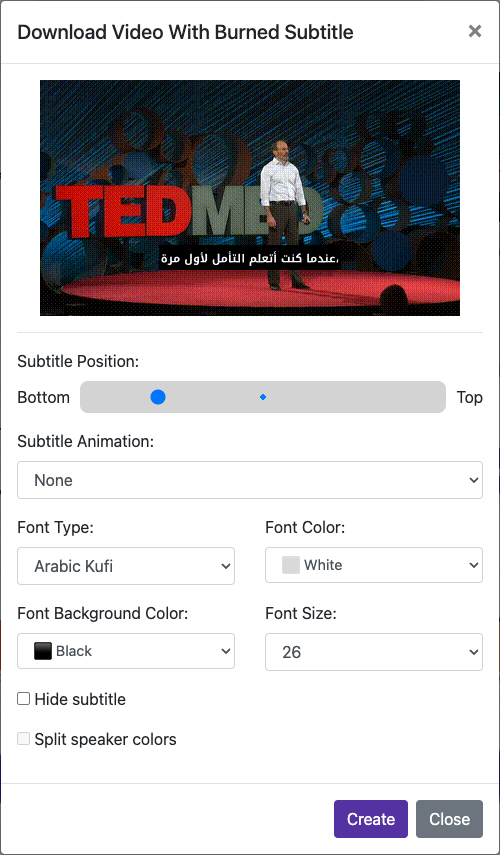
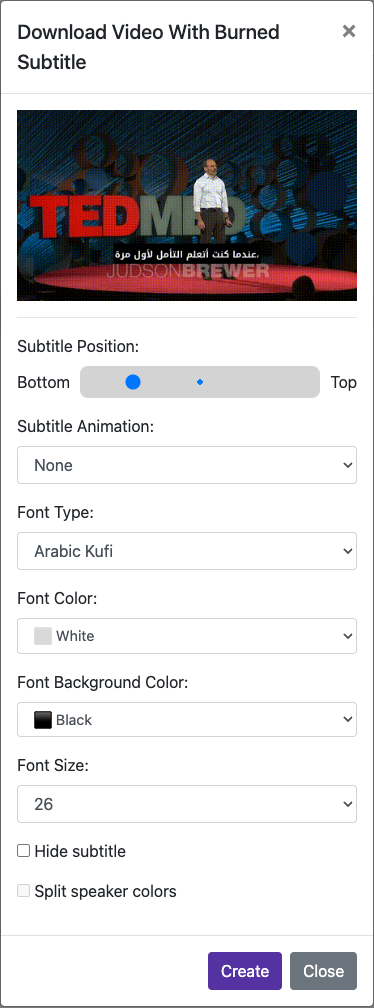
Open Download with subtitle and select Font Type. The list depends on the caption language; options may include Arial, Arabic Kufi, Arabic Naskh, El Messiri, Janna LT, and Noto Sans Arabic. Choose a font that displays every character correctly and check the preview.
Place the captions
Use Subtitle Position to move text between the bottom and top. Keep captions away from faces, existing titles, and social-app controls.
Check and export
Preview several frames, including the longest line and a bright background. Render the video and inspect the downloaded result.
Captured from the live website. Private account details are hidden. Balances and files shown in tutorial images are examples, not your account or a current offer.
Open the websiteStyle captions in the export dialog
Choose a supported font
Open Download with subtitle and select Font Type. The list depends on the caption language; options may include Arial, Arabic Kufi, Arabic Naskh, El Messiri, Janna LT, and Noto Sans Arabic. Choose a font that displays every character correctly and check the preview.
Set size and contrast
Adjust Font Size and Font Color. A contrasting background can make text easier to read over changing scenes. Use No Background only if the words remain clear.
Place the captions
Use Subtitle Position to move text between the bottom and top. Keep captions away from faces, existing titles, and social-app controls.
Add animation if useful
Choose Subtitle Animation. Preview the effect: readability matters more than movement. Speaker colors or word effects may appear with compatible options.
Check and export
Preview several frames, including the longest line and a bright background. Render the video and inspect the downloaded result.
Design for a phone screen
Use a readable size and avoid very long lines. A font that looks fine in a large desktop preview can be too small on a phone. Leave space around the edges, especially for vertical video.
Arabic and right-to-left captions
Check letter shaping, punctuation, numbers, and mixed Arabic/English text. Review the rendered file as well as the preview. If characters appear missing or disconnected, try a different available font and export again.
VTT and burned-in styling
A separate subtitle file is displayed by the receiving player, which may use its own font and appearance. Export burned-in captions when the visual styling must look consistent for everyone.
Questions about this guide
How do I change subtitle font, size and color?
Open Download with subtitle and select Font Type. The list depends on the caption language; options may include Arial, Arabic Kufi, Arabic Naskh, El Messiri, Janna LT, and Noto Sans Arabic. Choose a font that displays every character correctly and check the preview.
Adjust Font Size and Font Color. A contrasting background can make text easier to read over changing scenes. Use No Background only if the words remain clear.
Visual walkthrough
Select a step to see what to do. Enlarge the image for a closer look.
Choose a supported font
Captured from the live website. Private account details are hidden. Balances and files shown in tutorial images are examples, not your account or a current offer.
Need a hand?
Tell us what happened and which step you reached.