
Transcribe your first video
Turn spoken words into editable, timed captions.
On this page
Prepare a clear sourceUpload and generate captionsReview before sharingImport from a URLVisual walkthrough
Select a step to see what to do. Enlarge the image for a closer look.
Import your video
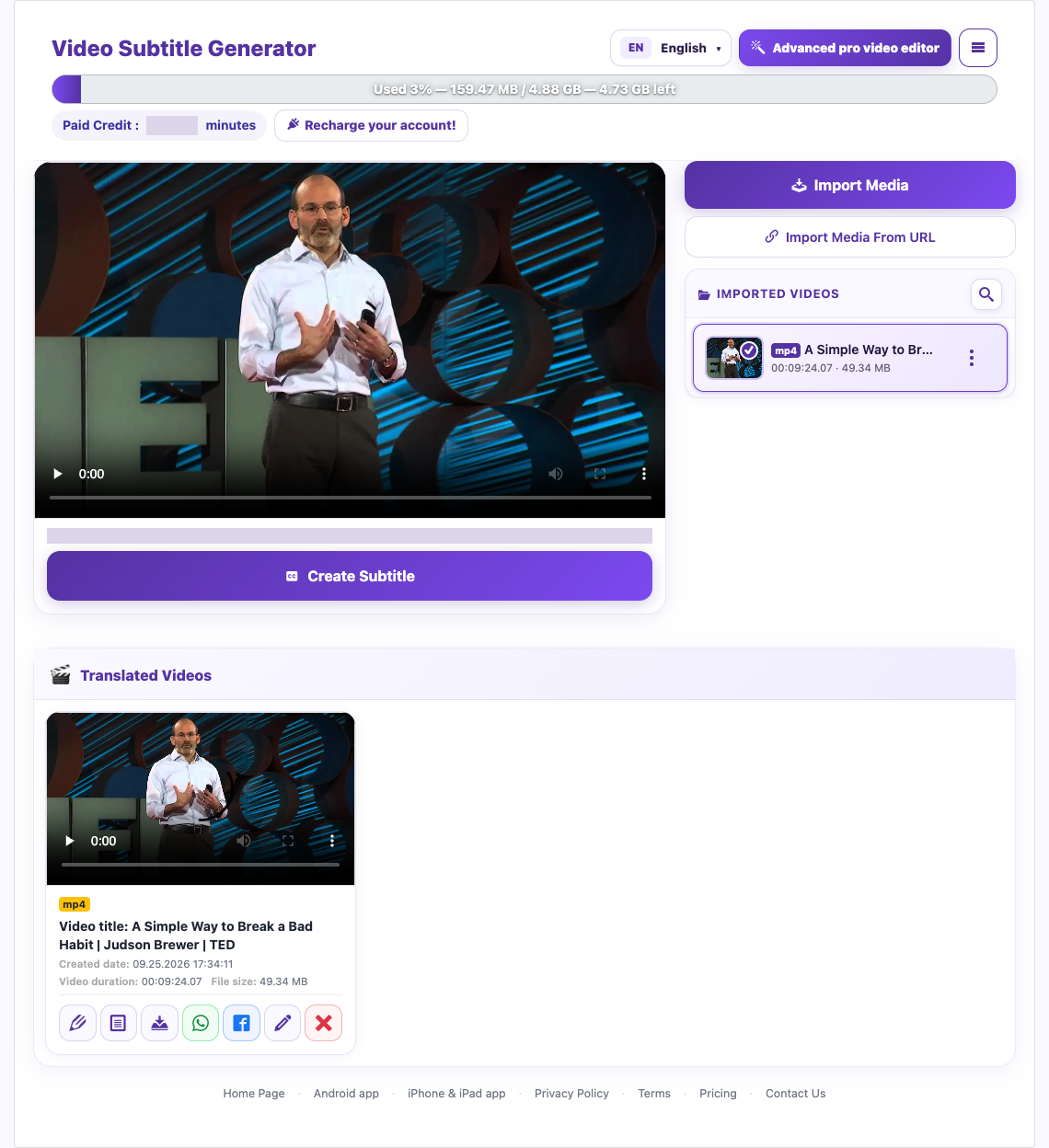
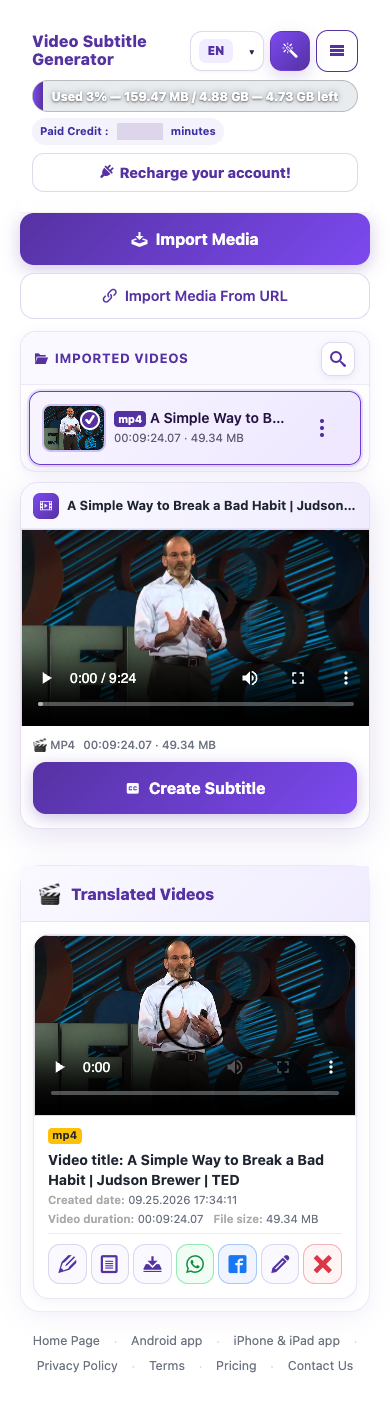
Sign in and choose Import Media. Select a video from your device. Keep the page open until the upload finishes, and wait for the imported file to appear.
Choose the output language
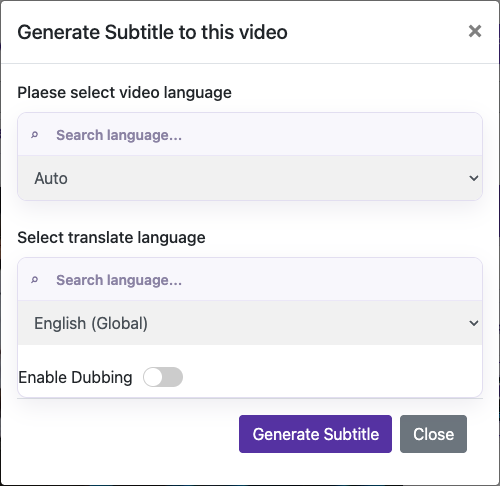
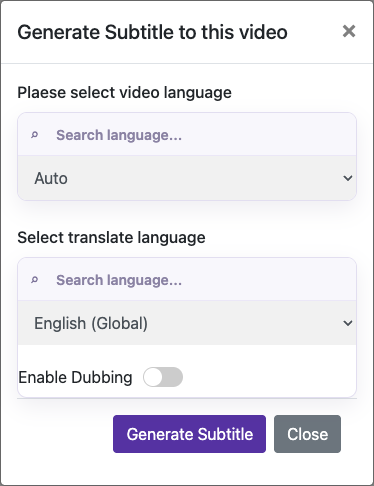
To transcribe without translating, choose the same language for the output, where offered. Choose a different output language to translate. Leave Enable Dubbing off if you only need captions.
Review before sharing
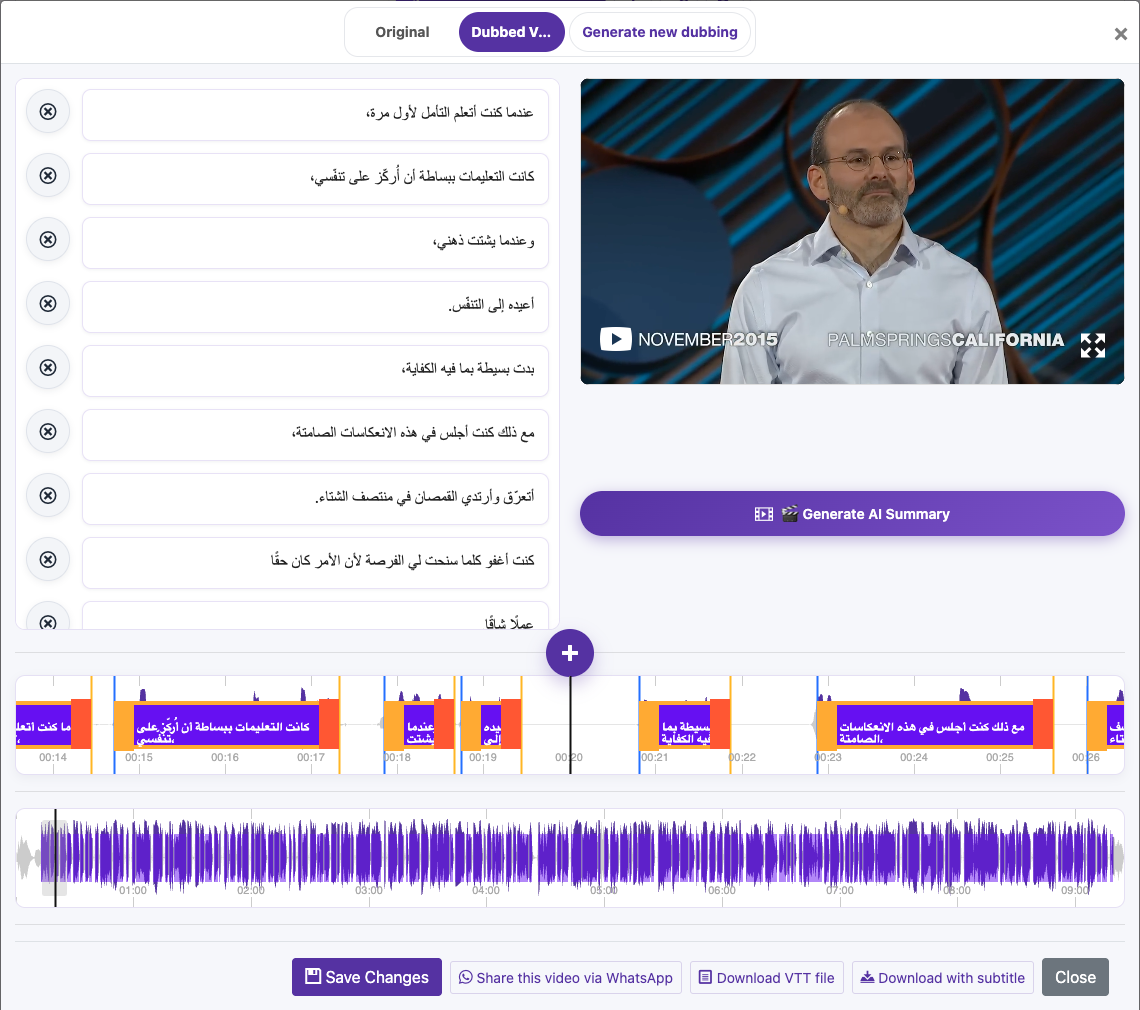
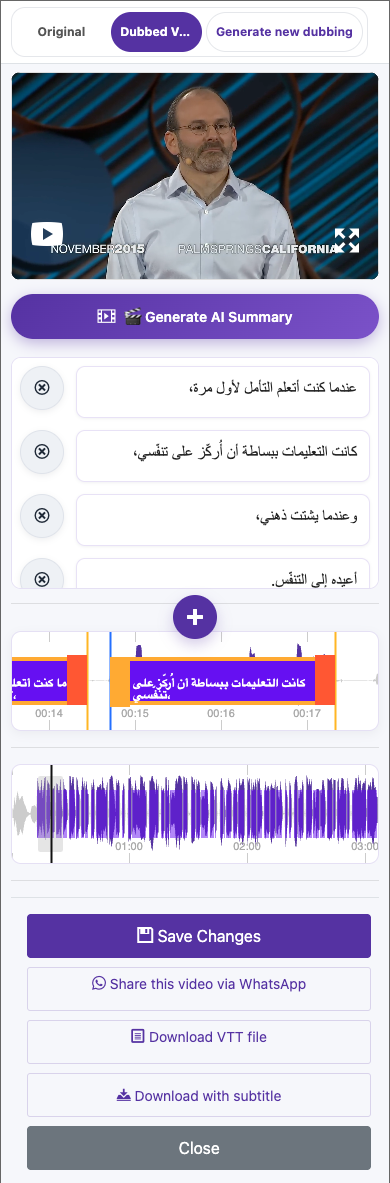
Play the video while reading the captions. Check names, numbers, technical terms, punctuation, and missing speech. Use Edit Caption to correct the result and Save Changes before downloading or dubbing.
Import from a URL
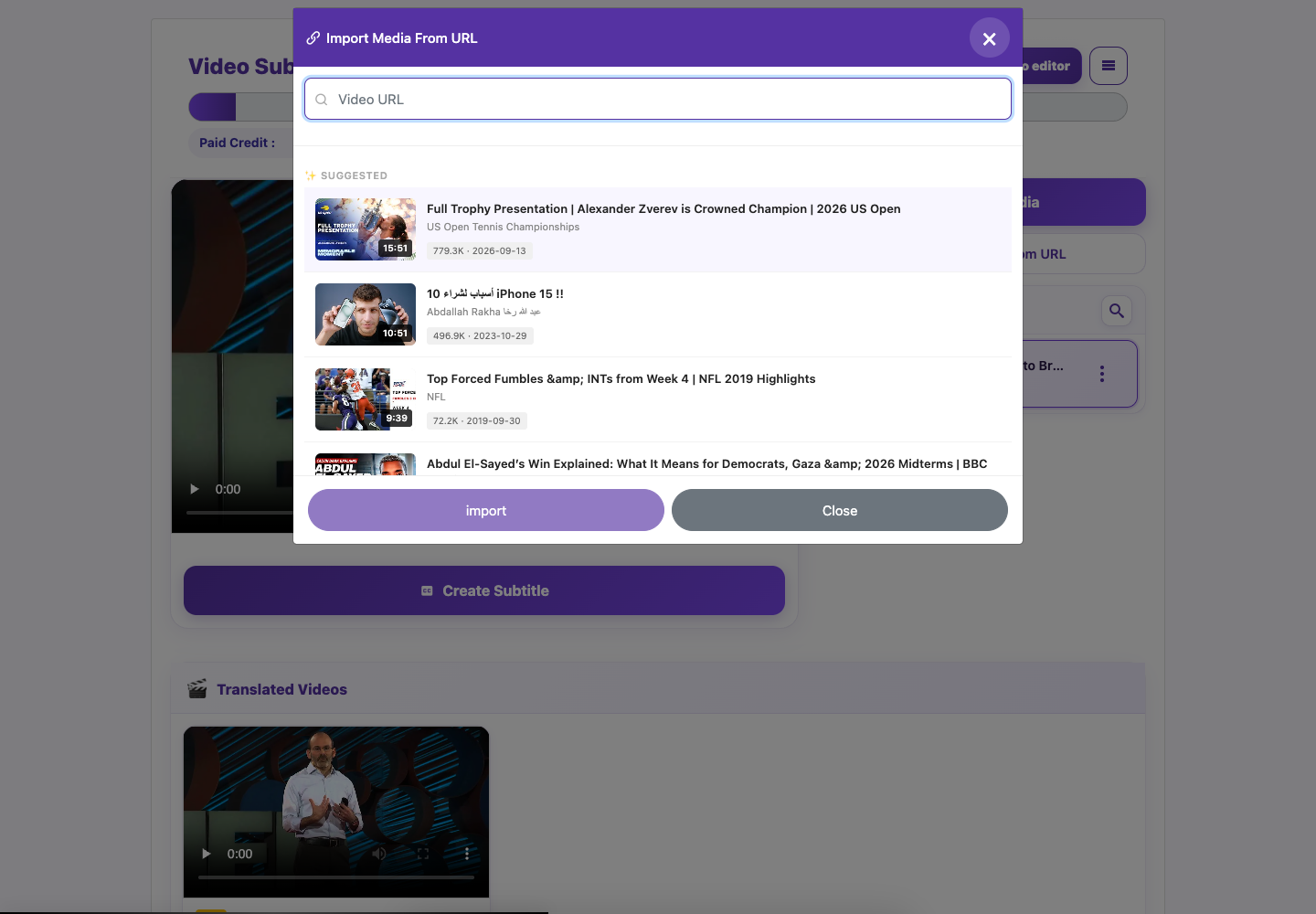
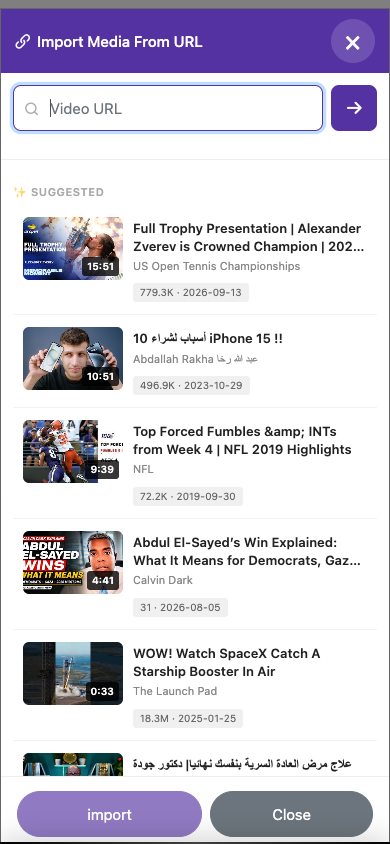
If your account offers Import Media From URL, paste a supported video URL and follow the import prompt. A URL must be accessible to the service. If it cannot be imported, upload a local copy that you have permission to use.
Captured from the live website. Private account details are hidden. Balances and files shown in tutorial images are examples, not your account or a current offer.
Open the websitePrepare a clear source
Use a video with audible speech. Background music, overlapping speakers, echo, and very quiet audio can reduce accuracy. Keep a copy of the original. For a first try, use a short clip so you can review the result quickly.
Upload and generate captions
Import your video
Sign in and choose Import Media. Select a video from your device. Keep the page open until the upload finishes, and wait for the imported file to appear.
Open subtitle options
Select the imported video and choose Create Subtitle. Confirm the preparation prompt to open the language options. This prepares the video; Generate Subtitle in the next dialog starts transcription.
Set the spoken language
Basic trial accounts use Auto Language Recognition. If your account enables manual source-language selection, choose the language actually spoken; this can help with short or noisy clips. Do not confuse the source language with the website interface language.
Choose the output language
To transcribe without translating, choose the same language for the output, where offered. Choose a different output language to translate. Leave Enable Dubbing off if you only need captions.
Confirm and wait
Review any trial limit or credit charge, then start Generate Subtitle. Wait for processing to finish. Open the result in Translated Videos.
Review before sharing
Play the video while reading the captions. Check names, numbers, technical terms, punctuation, and missing speech. Use Edit Caption to correct the result and Save Changes before downloading or dubbing.
Import from a URL
If your account offers Import Media From URL, paste a supported video URL and follow the import prompt. A URL must be accessible to the service. If it cannot be imported, upload a local copy that you have permission to use.
Questions about this guide
Can I create subtitles without dubbing?
To transcribe without translating, choose the same language for the output, where offered. Choose a different output language to translate. Leave Enable Dubbing off if you only need captions.
Visual walkthrough
Select a step to see what to do. Enlarge the image for a closer look.
Choose the output language
Captured from the live website. Private account details are hidden. Balances and files shown in tutorial images are examples, not your account or a current offer.
Need a hand?
Tell us what happened and which step you reached.