
Translate a video into another language
Choose the right source and target languages, then review the translation.
On this page
Understand the two language choicesGenerate the translationCreate another language versionWhen the translation is wrongVisual walkthrough
Select a step to see what to do. Enlarge the image for a closer look.
Import and select the video
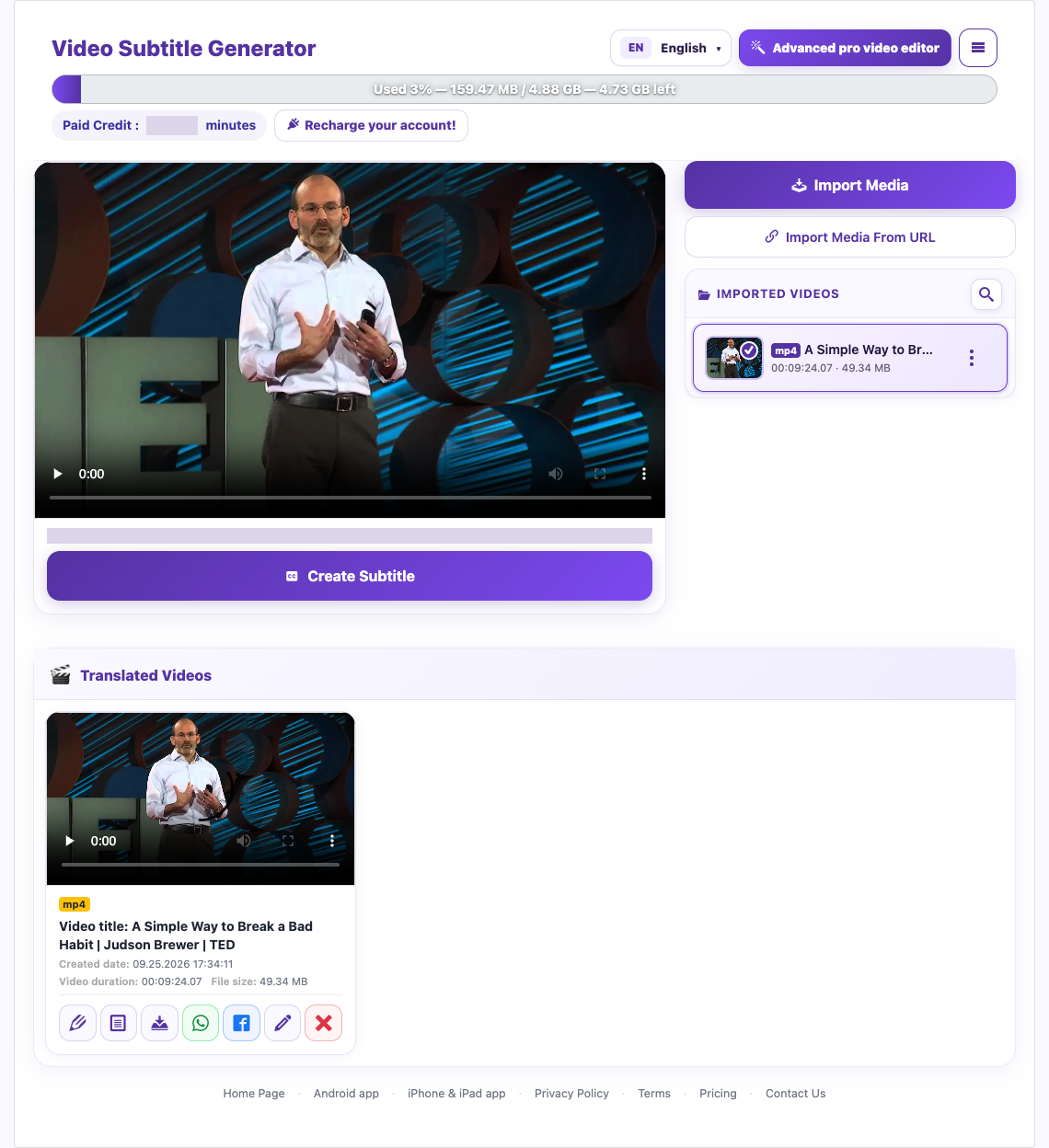
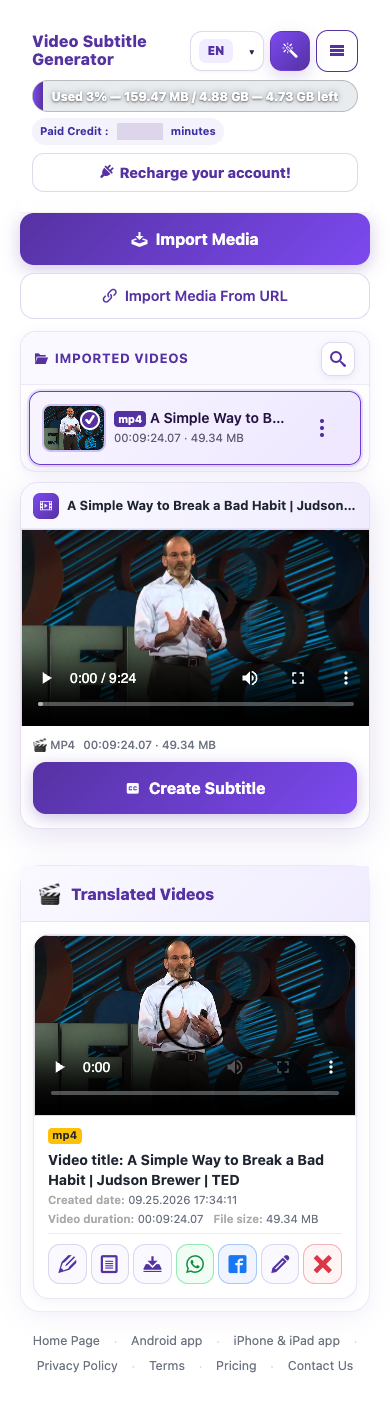
Wait for the upload or URL import to complete. Select the file, choose Create Subtitle, and confirm preparation to open the source and target language options.
Choose source and target
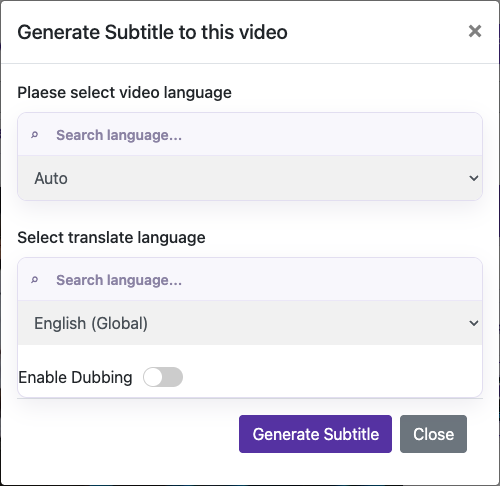
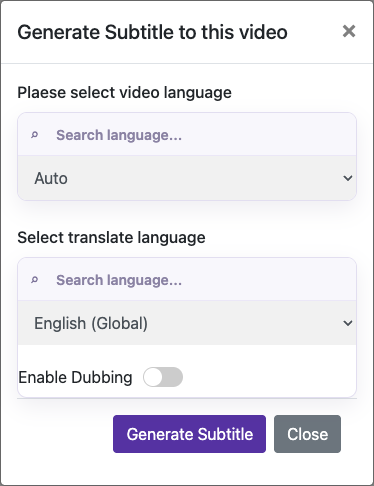
Basic trial accounts use automatic source-language recognition. Where manual selection is enabled, choose the spoken language first. Then select the translated language you want. The website interface language is a separate preference.
Review the translated result
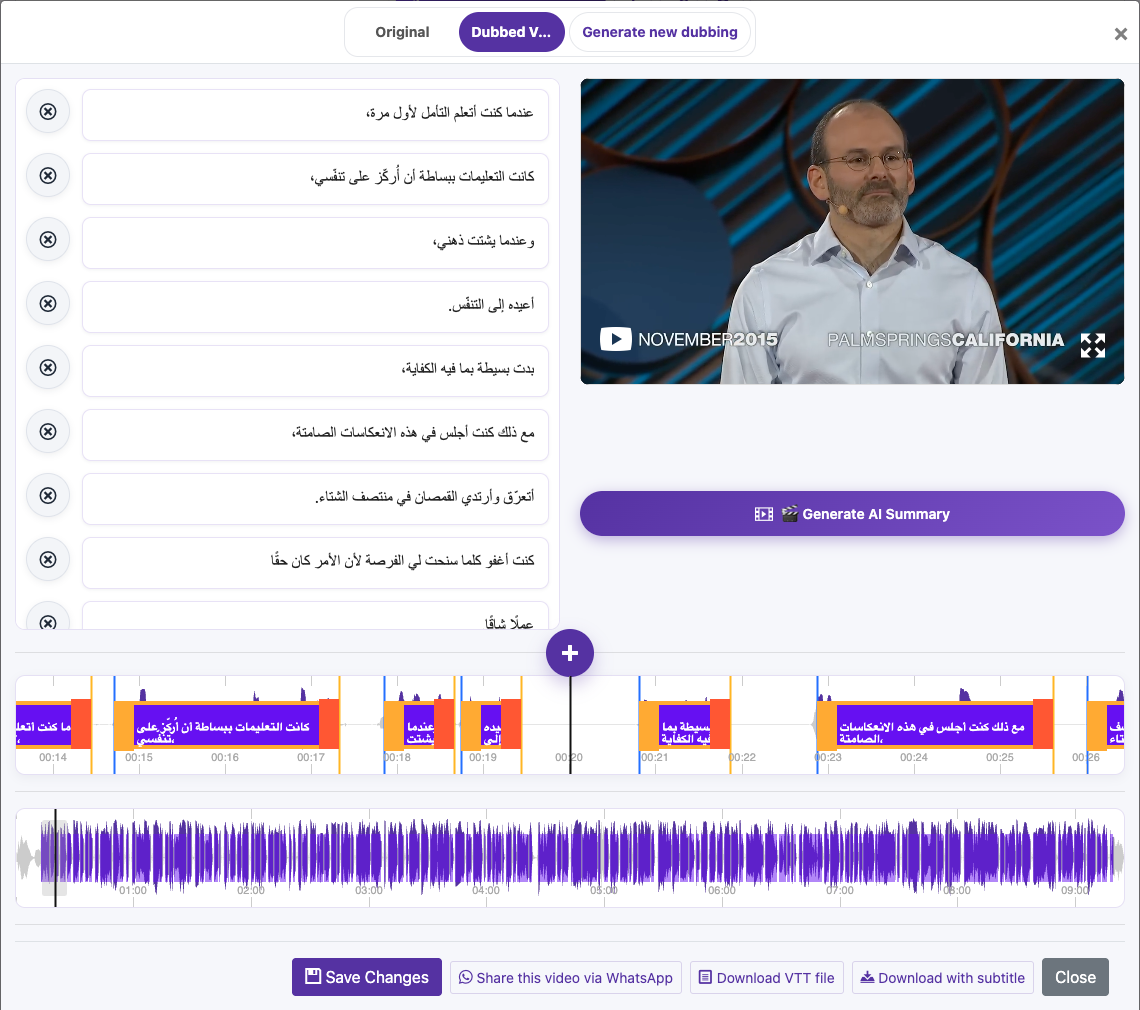
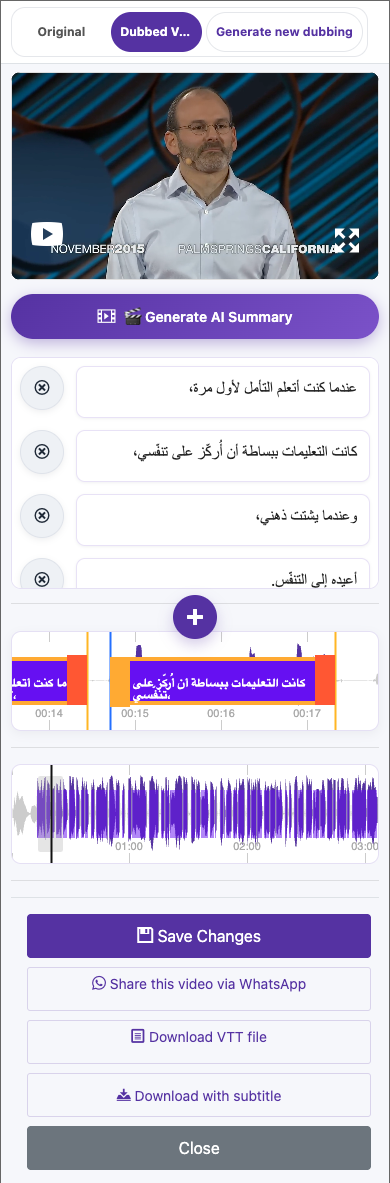
Check names, numbers, context, and sentence meaning. Keep corrections natural and concise, especially when the text will be spoken aloud. Save your edits.
Captured from the live website. Private account details are hidden. Balances and files shown in tutorial images are examples, not your account or a current offer.
Open the websiteUnderstand the two language choices
The source language is the language of the original speech. The target language is the language you want viewers to read or hear. For example, an English interview with Arabic captions uses English as the source and Arabic as the target.
Generate the translation
Import and select the video
Wait for the upload or URL import to complete. Select the file, choose Create Subtitle, and confirm preparation to open the source and target language options.
Choose source and target
Basic trial accounts use automatic source-language recognition. Where manual selection is enabled, choose the spoken language first. Then select the translated language you want. The website interface language is a separate preference.
Choose whether to dub
Enable Dubbing if you also want translated speech. The first dub is bundled with the original processing, subject to your account allowance. You may also review captions first and generate the first dub from the completed video later. Follow the options and confirmation shown for your account.
Review the translated result
Check names, numbers, context, and sentence meaning. Keep corrections natural and concise, especially when the text will be spoken aloud. Save your edits.
Create another language version
Return to the source video and choose the next target language. Review the new job’s credit confirmation. Check the language of the resulting file before exporting it, and use descriptive download filenames to keep versions separate.
When the translation is wrong
Confirm that the source speech is audible and correctly recognized. If manual language choice is available to your account, check that it matches the speech. Correct names or text in Edit Caption. A better voice cannot repair an incorrect translation, so review the text before dubbing.
Questions about this guide
What is the difference between source and target language?
The source language is the language of the original speech. The target language is the language you want viewers to read or hear. For example, an English interview with Arabic captions uses English as the source and Arabic as the target.
Visual walkthrough
Select a step to see what to do. Enlarge the image for a closer look.
Choose source and target
Captured from the live website. Private account details are hidden. Balances and files shown in tutorial images are examples, not your account or a current offer.
Need a hand?
Tell us what happened and which step you reached.