
Frequently asked questions
Quick answers about accounts, credits, captions, voices and downloads.
Search in any supported language. Answers stay in your selected language.
Quick answers
20 questionsWhy can’t I sign in after registering?
Submit the registration form and look for the account activation email. Open its activation link. Check spam or junk if the message is missing.
An unconfirmed account needs the activation link before you can sign in. For a forgotten password, choose Forgot your password? on the login page and follow the email instructions. If the website says the email already exists, sign in or recover that account.
Visual walkthrough
Select a step to see what to do. Enlarge the image for a closer look.
Sign in
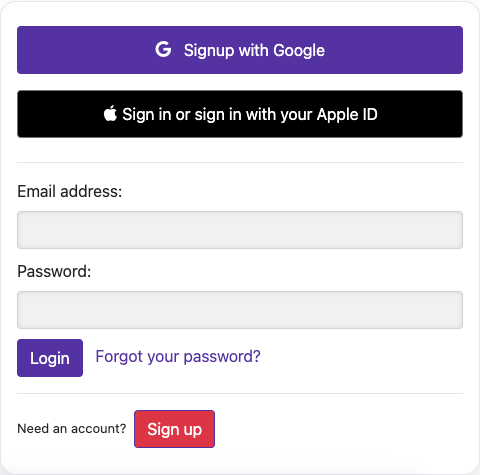
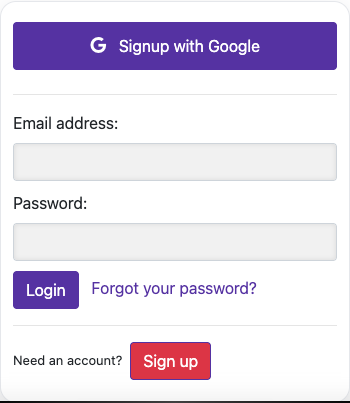
Captured from the live website. Private account details are hidden. Balances and files shown in tutorial images are examples, not your account or a current offer.
Can I use the same account on the website and mobile app?
The sign-in page also offers Google and Apple. Use the same sign-in method and account you use in the mobile app so you find the same videos and balance. If you used Apple Hide My Email, the account may use an Apple relay address. Check the app account details before creating a second account.
Visual walkthrough
Select a step to see what to do. Enlarge the image for a closer look.
Open the website
Captured from the live website. Private account details are hidden. Balances and files shown in tutorial images are examples, not your account or a current offer.
How are processing credits calculated?
Paid credit is processing time, displayed in minutes or hours. Processing a paid video deducts the processed video duration. First-time dubbing is bundled with the original video processing; creating another dub for a video that already has a completed dub costs its duration again. Your plan, subscription state, balance and expiry still determine access.
Visual walkthrough
Select a step to see what to do. Enlarge the image for a closer look.
Check your available balance
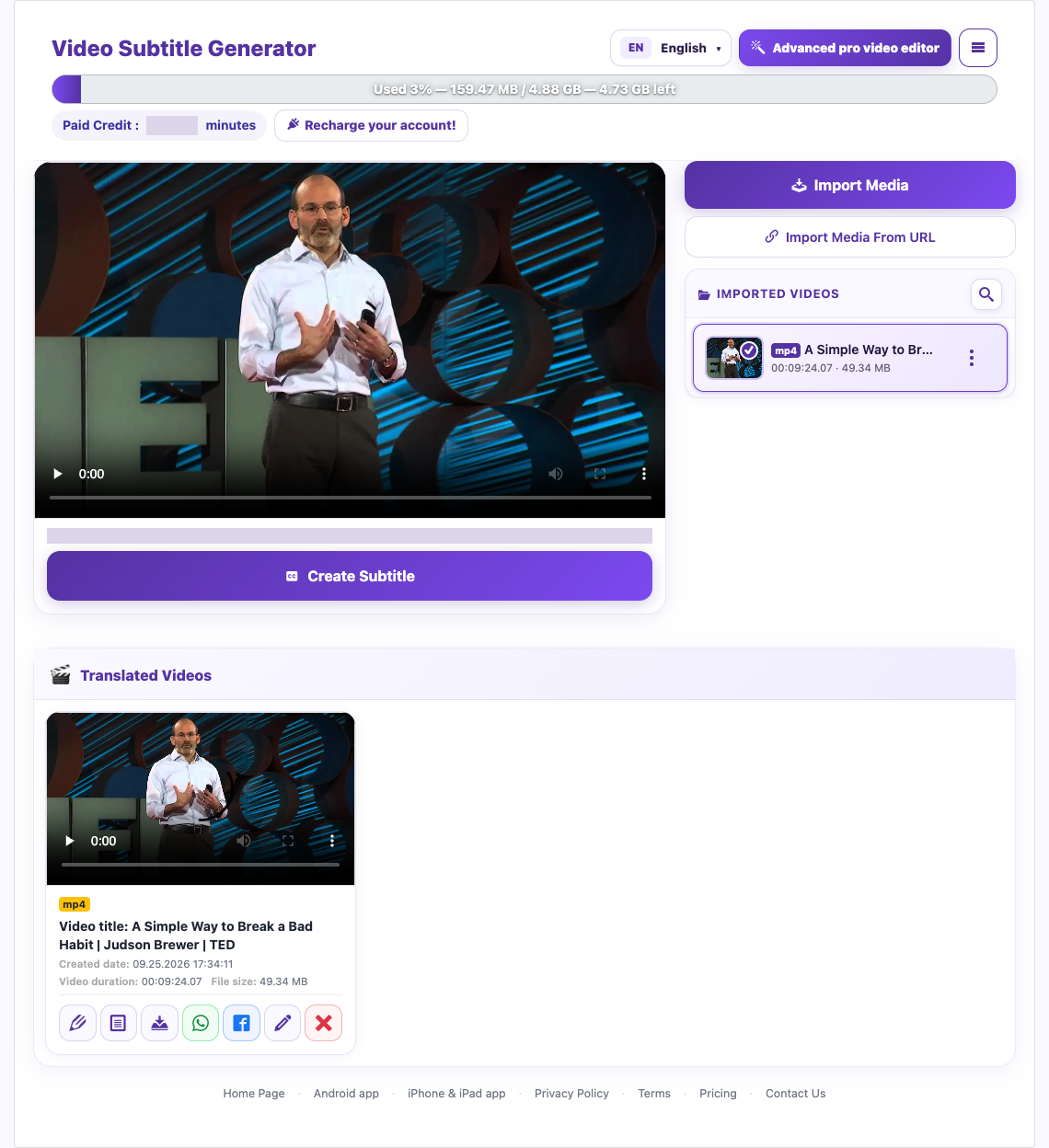
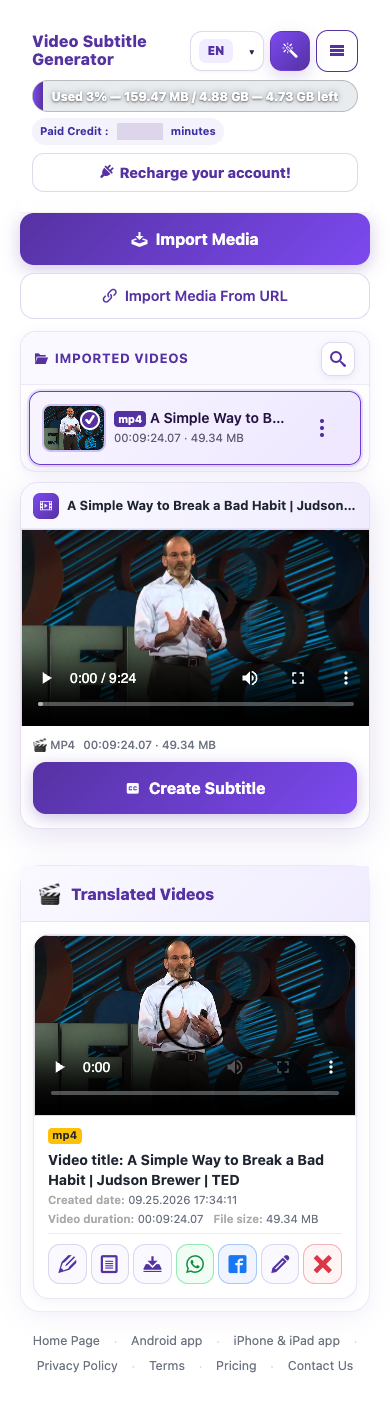
Captured from the live website. Private account details are hidden. Balances and files shown in tutorial images are examples, not your account or a current offer.
What is included in the free trial?
The current Basic trial includes 1 successful free video translation, up to 5 minutes per video; 1 free dubbing generation; 1 AI summary; and 6 downloads shared between video and VTT files. Downloading either type uses the same pool. These are account-lifetime limits, not a daily refill. Read the current account confirmation if an offer changes.
Longer trial videos are cut to the per-video limit. Confirm the result duration before assuming the whole video was processed.
Visual walkthrough
Select a step to see what to do. Enlarge the image for a closer look.
Check your available balance
Captured from the live website. Private account details are hidden. Balances and files shown in tutorial images are examples, not your account or a current offer.
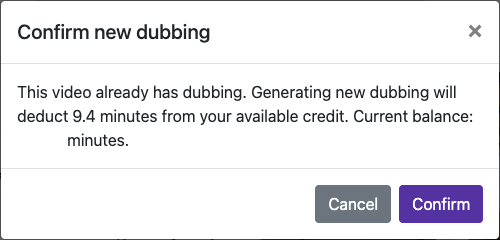
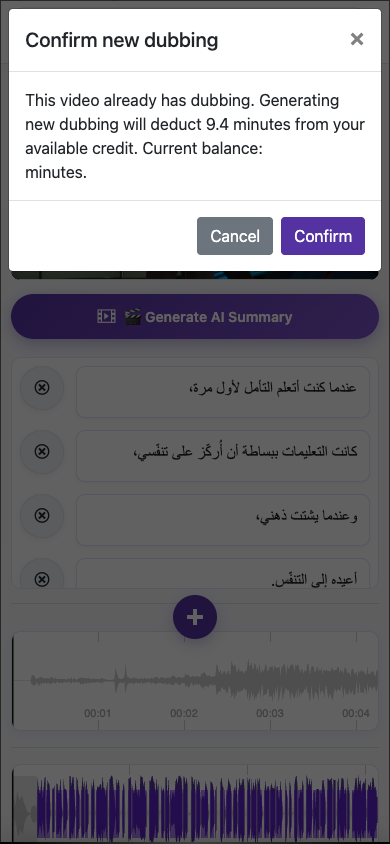
Does generating another dub use more credit?
For a 2-minute paid video, the original processing consumes 2 minutes of credit, with first-time dubbing bundled in. Regenerating a completed dub costs another 2 minutes after confirmation. If you start that regeneration with 10 minutes, 8 minutes remain. Separate AI creation or summary tools may have different costs; use their confirmation screens.
Visual walkthrough
Select a step to see what to do. Enlarge the image for a closer look.
An example of dubbing regeneration
Check your available balance
Captured from the live website. Private account details are hidden. Balances and files shown in tutorial images are examples, not your account or a current offer.
Can I create subtitles without dubbing?
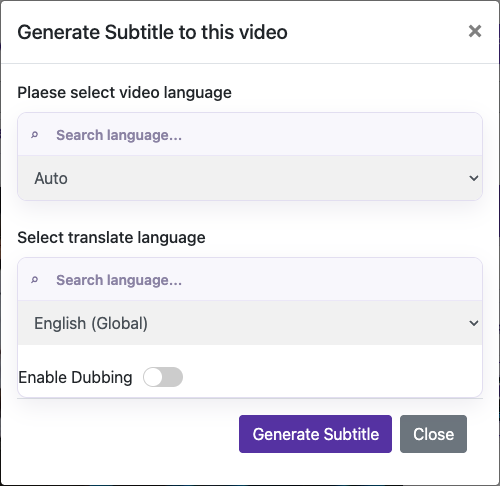
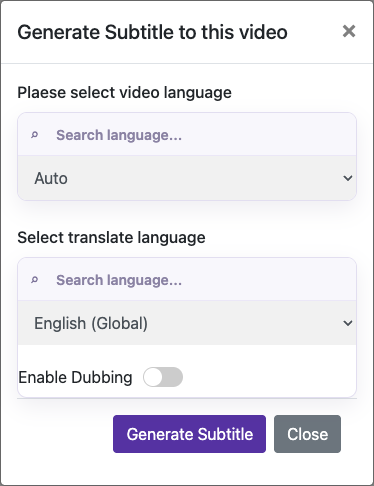
To transcribe without translating, choose the same language for the output, where offered. Choose a different output language to translate. Leave Enable Dubbing off if you only need captions.
Visual walkthrough
Select a step to see what to do. Enlarge the image for a closer look.
Choose the output language
Captured from the live website. Private account details are hidden. Balances and files shown in tutorial images are examples, not your account or a current offer.
What is the difference between source and target language?
The source language is the language of the original speech. The target language is the language you want viewers to read or hear. For example, an English interview with Arabic captions uses English as the source and Arabic as the target.
Visual walkthrough
Select a step to see what to do. Enlarge the image for a closer look.
Choose source and target
Captured from the live website. Private account details are hidden. Balances and files shown in tutorial images are examples, not your account or a current offer.
Which voice should I use if the original speech is unclear?
Male voice or Female voice
If a cloned voice sounds poor, try a built-in voice after correcting the captions. This changes the voice reference; it does not recover words the transcription missed.
Visual walkthrough
Select a step to see what to do. Enlarge the image for a closer look.
Choose the right voice
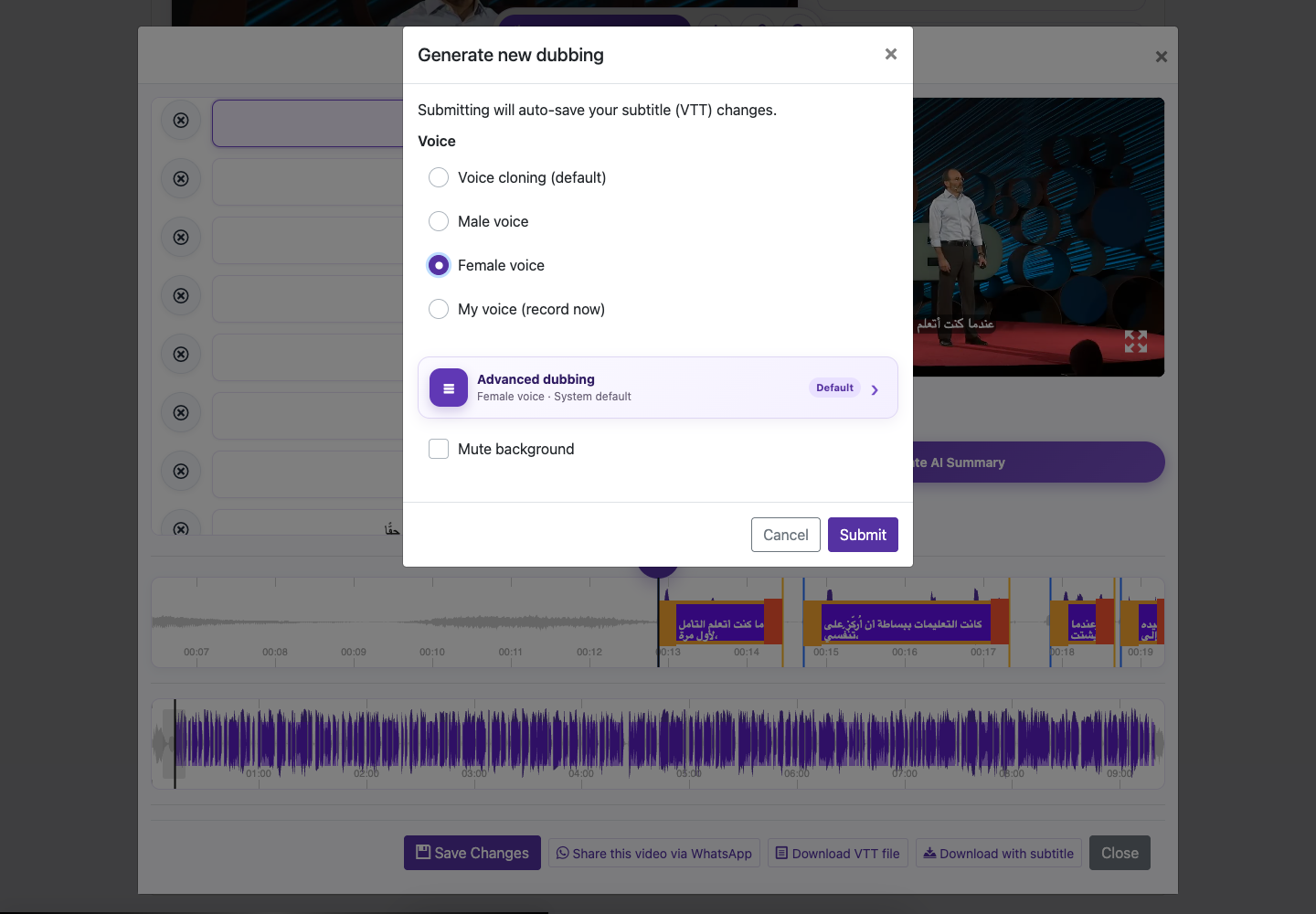
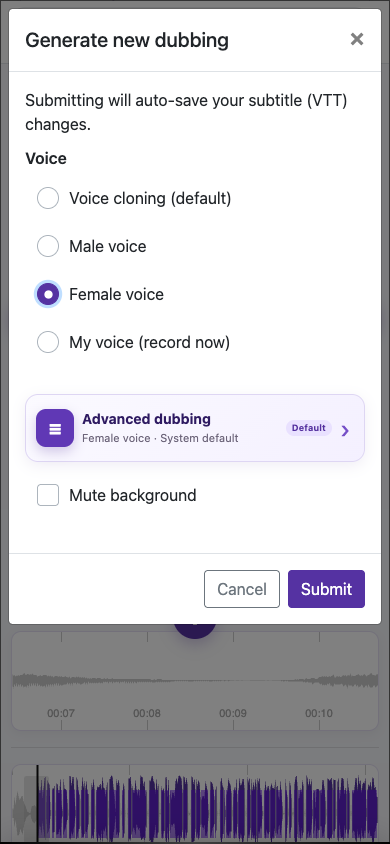
Captured from the live website. Private account details are hidden. Balances and files shown in tutorial images are examples, not your account or a current offer.
Can I record my own voice for dubbing?
Open a processed video, choose Edit Caption, then Generate new dubbing. Select My voice (record now). The initial processing dialog offers the source clone and built-in male/female voices; custom recording is in the later dubbing dialog.
Record 3–10 seconds
Speak clearly at a natural pace in a quiet room. Use one voice, keep a steady distance from the microphone, and avoid music or other people speaking.
Confirm that you own the voice and consent to using it for dubbing. Review the captions and audio settings, then check the charge and submit.
Visual walkthrough
Select a step to see what to do. Enlarge the image for a closer look.
Record 3–10 seconds
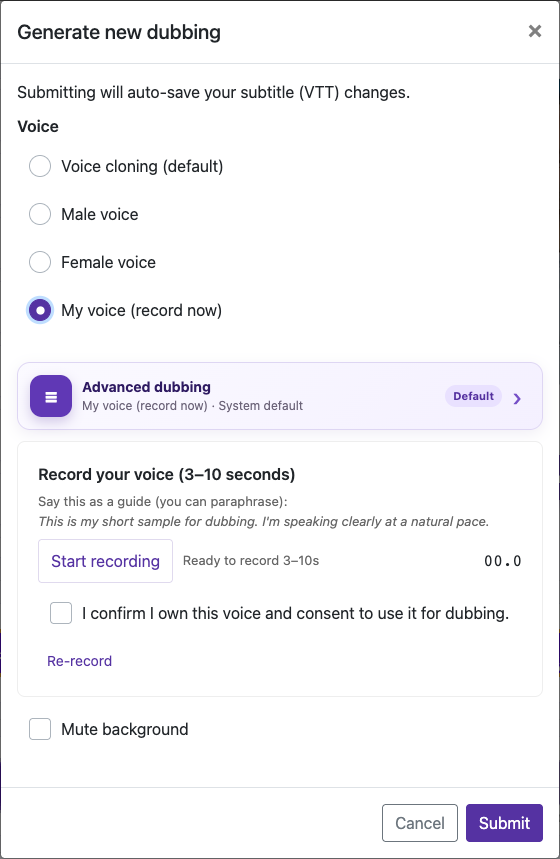
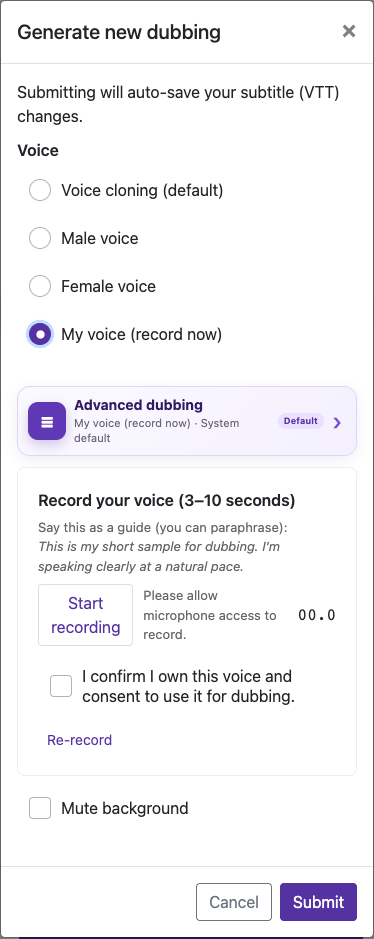
Captured from the live website. Private account details are hidden. Balances and files shown in tutorial images are examples, not your account or a current offer.
How do I mute original audio or lower background music?
Look for Advanced dubbing options in the dubbing settings. Depending on the screen, you may also see Mute background.
Use Dubbing only when you want only the translated voice. In a custom mix, use Remove original voice or lower original voice volume as appropriate.
Lower Background music and effects volume if the background competes with speech. Enable Lower background while dubbing speaks to reduce it during speech.
Visual walkthrough
Select a step to see what to do. Enlarge the image for a closer look.
Remove competing speech
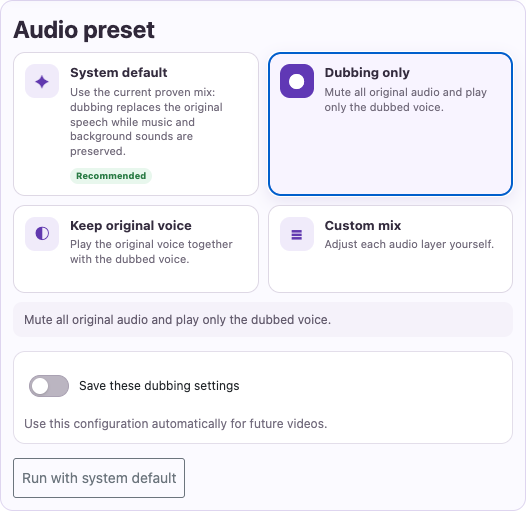
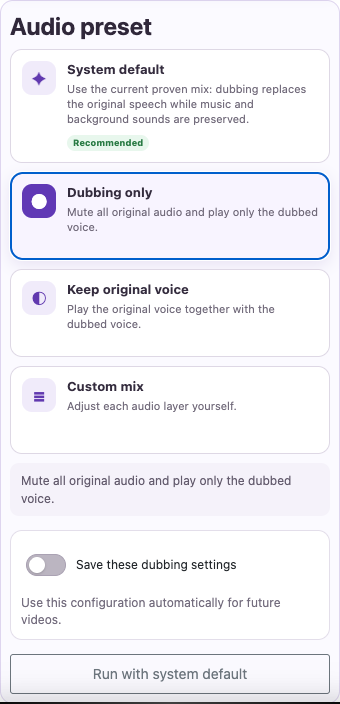
Adjust music and effects
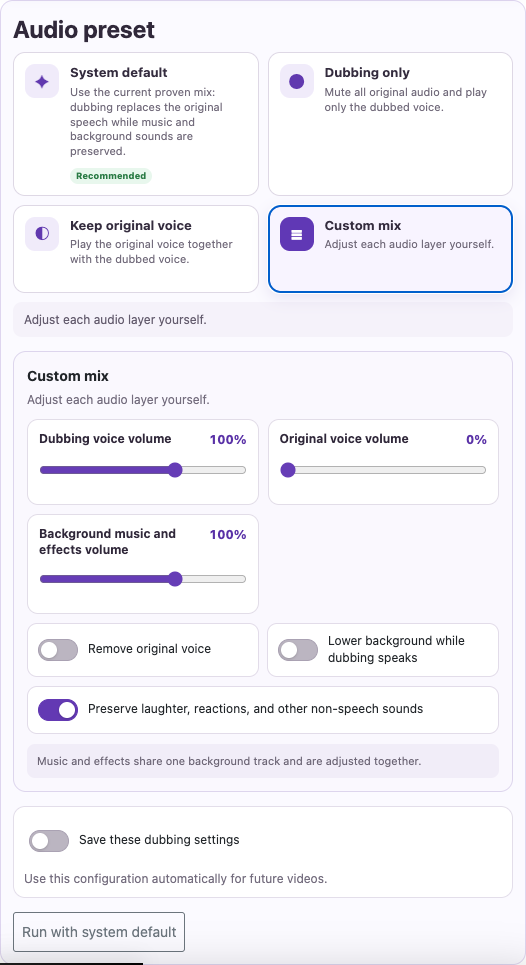
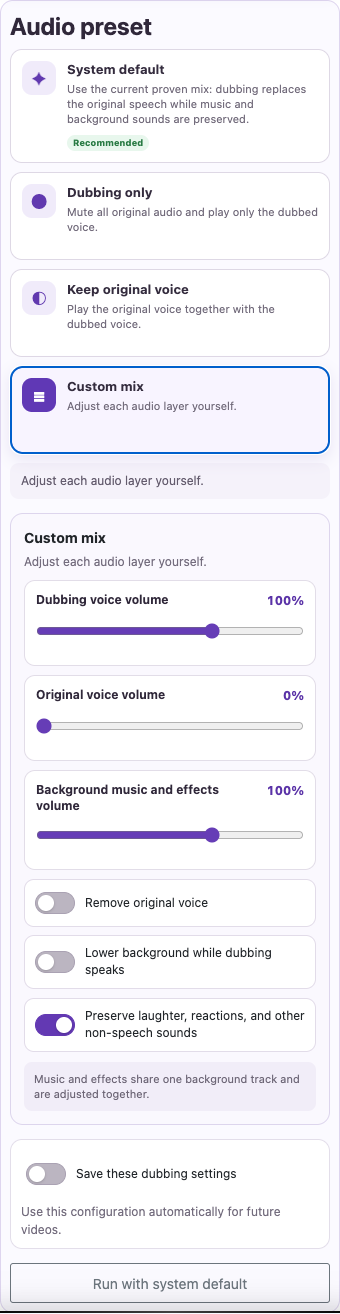
Captured from the live website. Private account details are hidden. Balances and files shown in tutorial images are examples, not your account or a current offer.
How do I correct and save subtitle text?
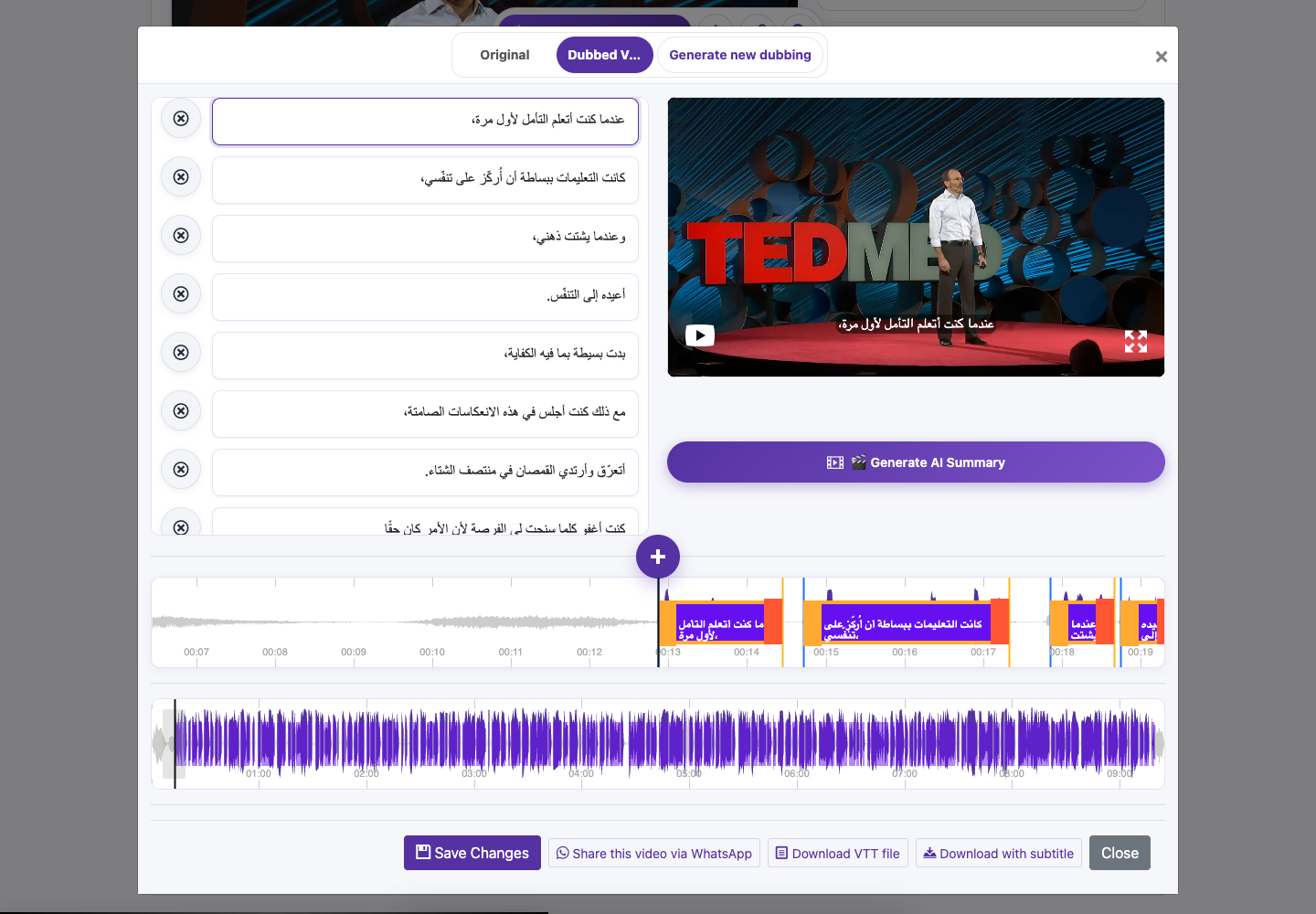
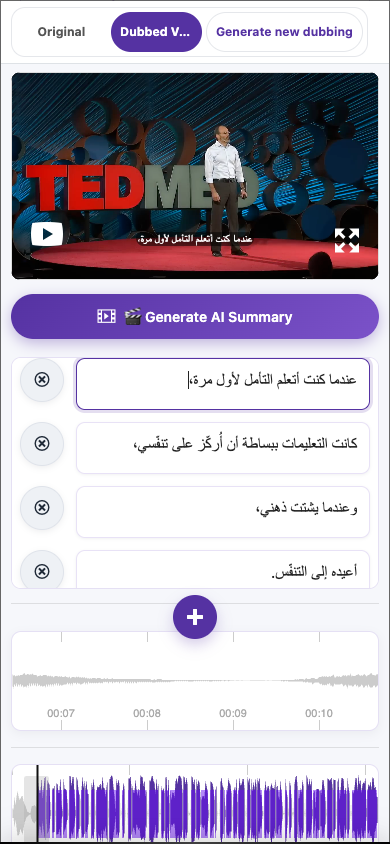
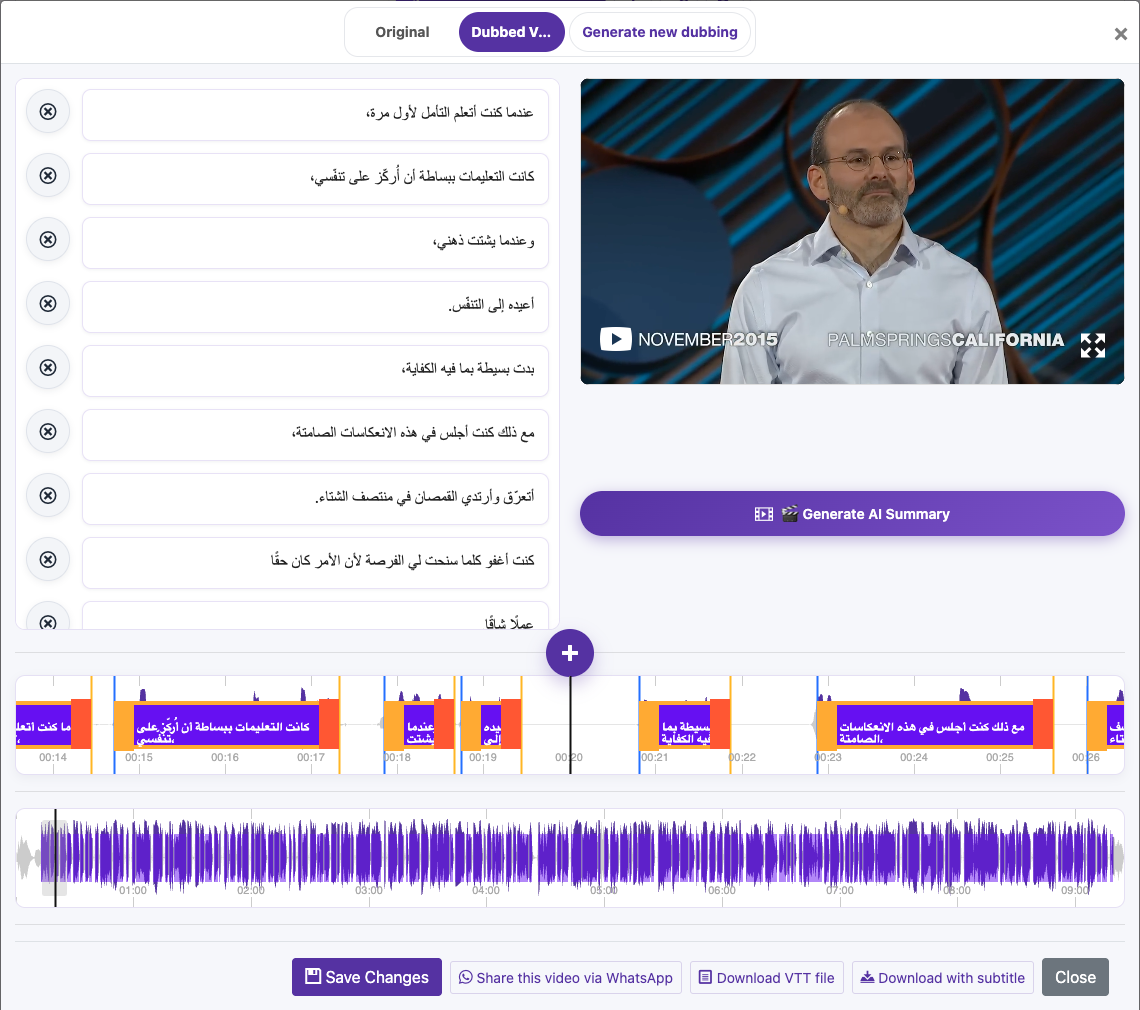
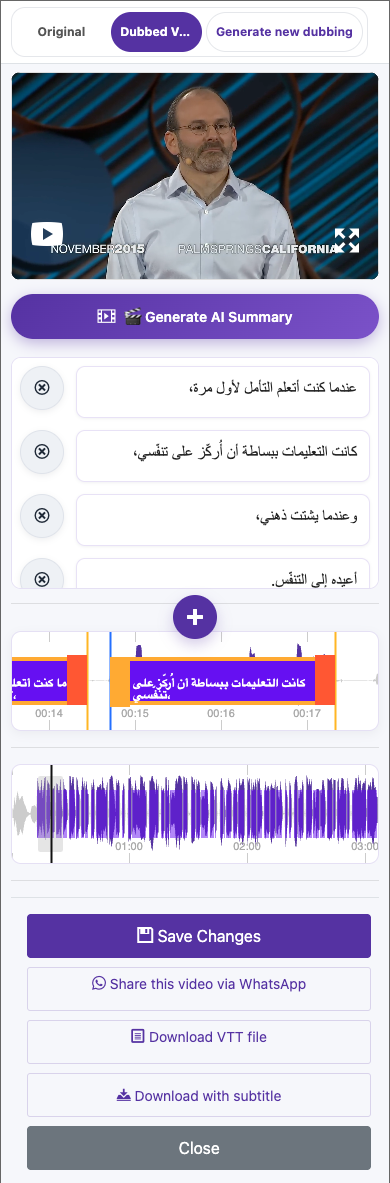
Open the completed video in Translated Videos and choose Edit Caption. Make sure you have the intended language version.
Click a caption once to seek to its time. Click it again while playback is within that caption to edit its text. On mobile, double-tap a caption to enter editing. Work through short sections and compare them with the audio.
Edit the caption text. Enter inserts a line break; Escape leaves text editing. Pay special attention to names, dates, numbers, punctuation, and specialist vocabulary while preserving meaning.
Save before closing the editor. Wait for the Subtitle Saved confirmation and replay the affected section.
Visual walkthrough
Select a step to see what to do. Enlarge the image for a closer look.
Correct the words
Save Changes
Captured from the live website. Private account details are hidden. Balances and files shown in tutorial images are examples, not your account or a current offer.
Why did editing captions not change the dubbed voice?
Saving caption changes does not automatically replace an existing dubbed soundtrack. If spoken words need to change too, choose Generate new dubbing, review the settings and cost, then listen to the new version. Likewise, an already downloaded burned-in video must be exported again to include your latest captions.
Visual walkthrough
Select a step to see what to do. Enlarge the image for a closer look.
Save Changes
Open dubbing options
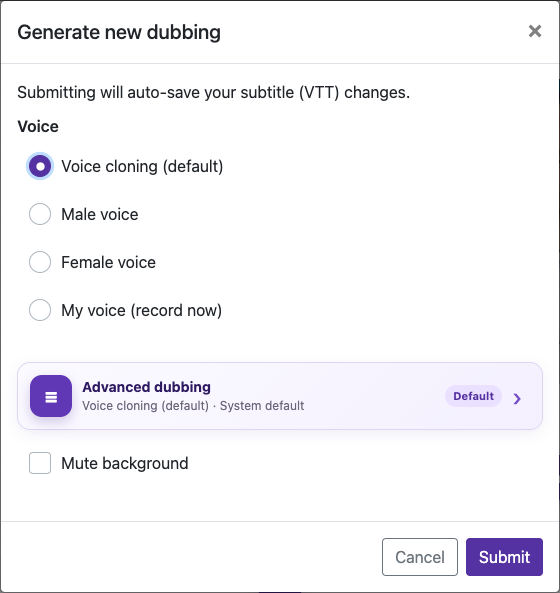
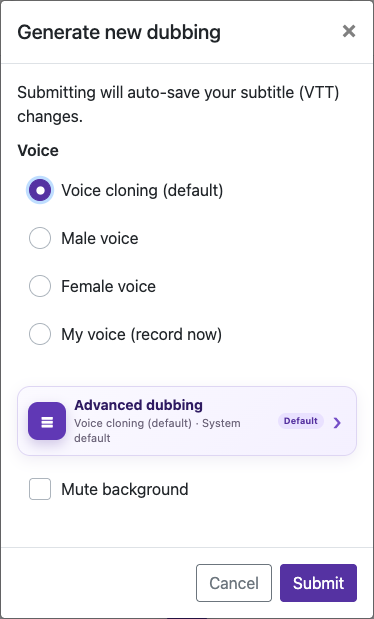
Captured from the live website. Private account details are hidden. Balances and files shown in tutorial images are examples, not your account or a current offer.
What are hard-burned subtitles?
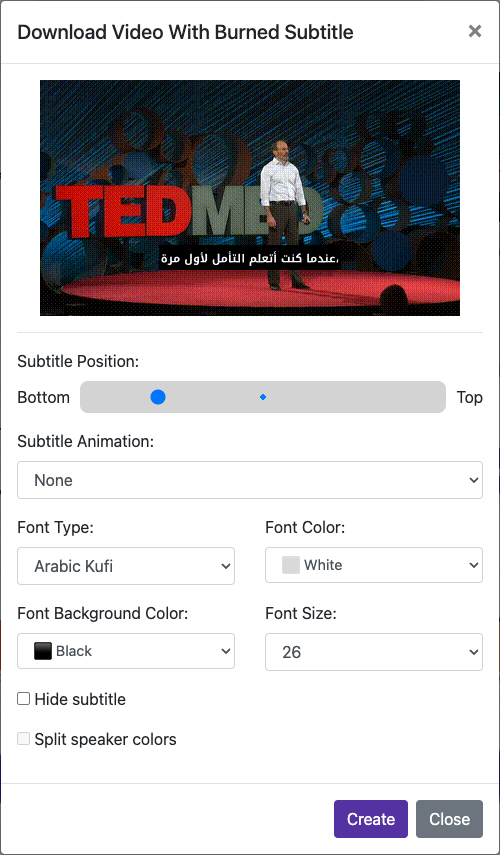
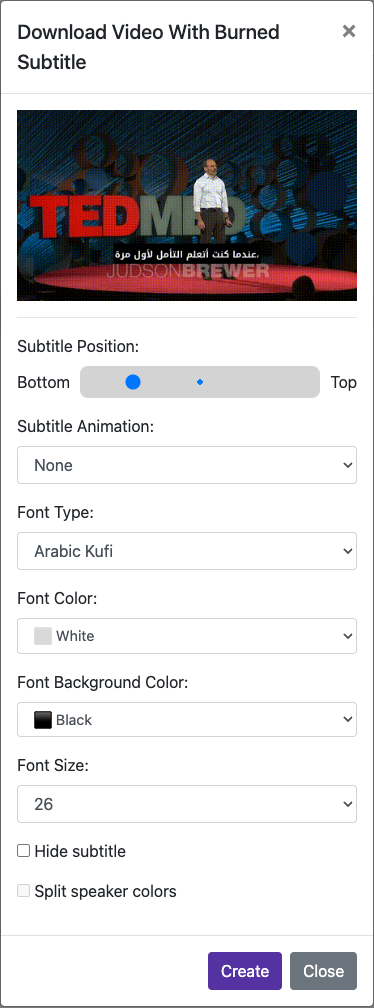
Hard-burned subtitles become part of the video picture. Viewers cannot turn them off or change their font. To make changes later, edit the source captions and export a new video. Keep the original video and VTT file.
Visual walkthrough
Select a step to see what to do. Enlarge the image for a closer look.
Set the caption appearance
Captured from the live website. Private account details are hidden. Balances and files shown in tutorial images are examples, not your account or a current offer.
How do I change subtitle font, size and color?
Open Download with subtitle and select Font Type. The list depends on the caption language; options may include Arial, Arabic Kufi, Arabic Naskh, El Messiri, Janna LT, and Noto Sans Arabic. Choose a font that displays every character correctly and check the preview.
Adjust Font Size and Font Color. A contrasting background can make text easier to read over changing scenes. Use No Background only if the words remain clear.
Visual walkthrough
Select a step to see what to do. Enlarge the image for a closer look.
Choose a supported font
Captured from the live website. Private account details are hidden. Balances and files shown in tutorial images are examples, not your account or a current offer.
Can I download subtitles as a separate file?
Choose Download VTT file on the processed video. A VTT file contains text and timestamps; it does not contain the video or dubbed audio. Keep it with the matching video and language version.
Visual walkthrough
Select a step to see what to do. Enlarge the image for a closer look.
Download captions separately
Captured from the live website. Private account details are hidden. Balances and files shown in tutorial images are examples, not your account or a current offer.
Where is my downloaded video on my phone?
After downloading, check the browser’s downloads list and your device’s Files or Downloads app. If a video opens in a new tab, use the browser’s available save or share action. Confirm the file is saved on your device before closing the page.
Visual walkthrough
Select a step to see what to do. Enlarge the image for a closer look.
Choose Download with subtitle
Captured from the live website. Private account details are hidden. Balances and files shown in tutorial images are examples, not your account or a current offer.
What should I do if a processing job is already running?
Wait for the existing upload, translation, dubbing, or rendering job to complete. Check the workspace status and any completion email. Avoid repeated submissions while the same file is processing.
Read the full guideWhy is my purchased credit missing?
Make sure you are signed in to the purchasing account. If payment is pending or the subscription needs recovery, follow the payment-provider instructions. Contact support with the receipt reference and the affected account; do not send passwords or full payment-card details.
Visual walkthrough
Select a step to see what to do. Enlarge the image for a closer look.
Sign in
Check your available balance
Captured from the live website. Private account details are hidden. Balances and files shown in tutorial images are examples, not your account or a current offer.
How long are videos kept in my account?
Basic-account files can be removed within 15 days under the storage policy. When a paid subscription ends and the account returns to Basic, that retention policy applies. Keep your own copies.
Review the website’s current storage policy and account expiry notices.
Visual walkthrough
Select a step to see what to do. Enlarge the image for a closer look.
Keep a backup
Captured from the live website. Private account details are hidden. Balances and files shown in tutorial images are examples, not your account or a current offer.
How do I create an AI video summary?
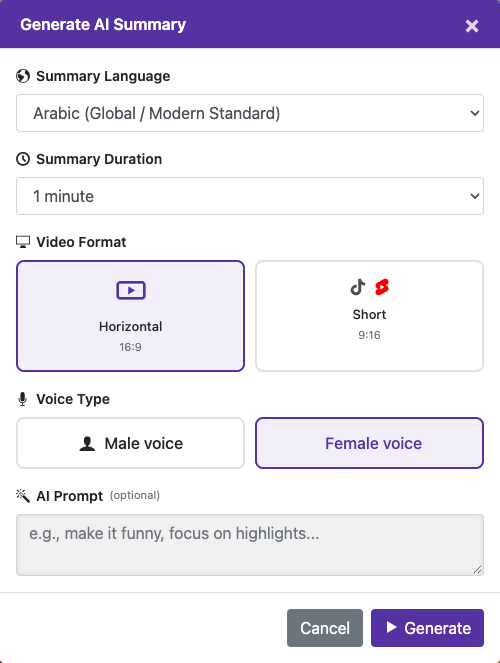
Open the captioned video and find Generate AI Summary.
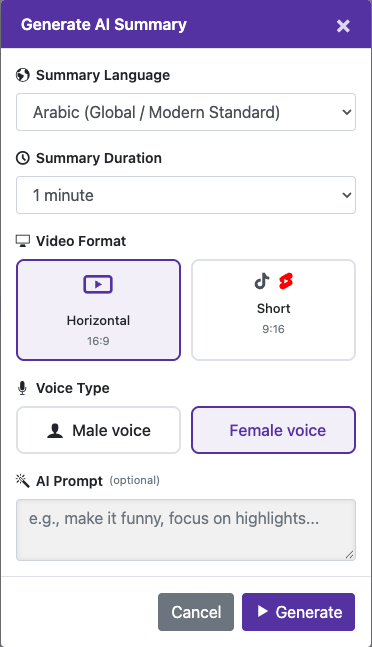
Select the summary language and duration (the current options range from 30 seconds to 5 minutes), horizontal 16:9 or vertical 9:16, and male or female voice. Add an optional instruction, such as focusing on the main points.
Check any trial allowance or credit confirmation. Wait for the summary job to finish before submitting it again.
Check that the summary accurately represents the video. Important details can be omitted by summarization; use the full source when completeness matters.
Visual walkthrough
Select a step to see what to do. Enlarge the image for a closer look.
Choose the summary options
Captured from the live website. Private account details are hidden. Balances and files shown in tutorial images are examples, not your account or a current offer.
Need a hand?
Tell us what happened and which step you reached.